OS MIDI Editor
Old School MIDI Editor: a MIDI file editor for the Mac inspired by the Cubase and Cakewalk of the '90s. Open a MIDI or karaoke file, listen to it with the built-in synthesizer or an external sound module, and edit it in three views: Arrange for the whole song, Piano Roll or Drum Editor for one channel, Event List for single messages. No audio and no plug-ins: just MIDI.
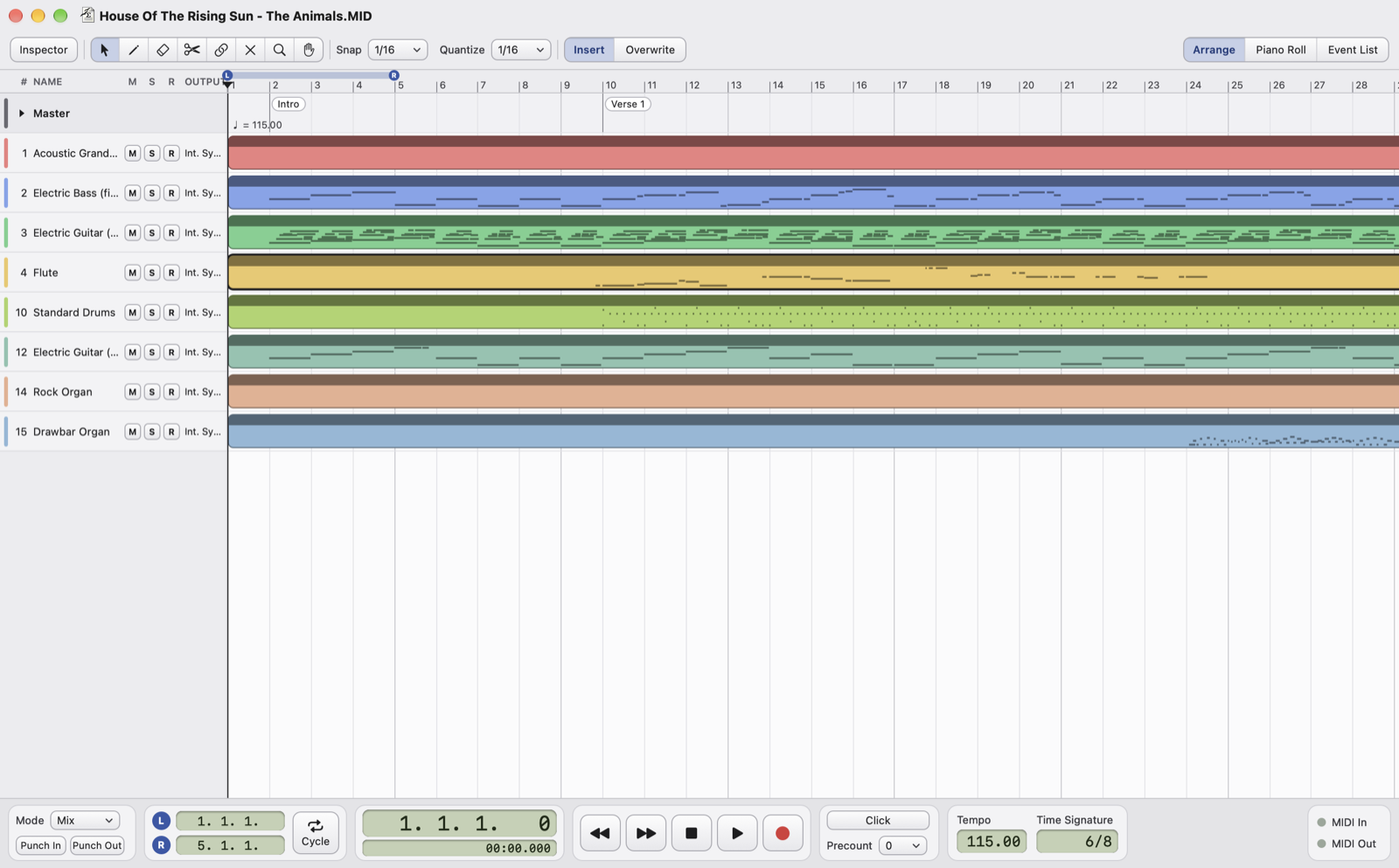
What you can do
- Open and save
.mid,.midiand.karfiles without damaging them: same resolution, same events at the same ticks, SysEx and meta events included. - Work with parts in the Arrange view: move, copy, split, glue and mute them; cut, copy, paste and repeat the range between the locators, in Insert or Overwrite mode.
- Edit notes in the Piano Roll and the Drum Editor, with velocity, quantize and transpose; every message in the Event List.
- Play and record with the built-in SF2 synthesizer or with MIDI sound modules and keyboards, with cycle, metronome and precount.
- Karaoke lyrics and chords in the M-Live, GM, Yamaha XF, Solton and Soft Karaoke formats; add them to a song that has none.
- Undo everything: every change can be undone with ⌘Z, with no practical limit.
Installation
OS MIDI Editor is free and can be downloaded from armusic.dev. It doesn't come from the Mac App Store, so the first time macOS blocks it:
- Open the
.dmgfile and drag OS MIDI Editor to the Applications folder. - Open the app: macOS says it can't verify it. Click Done.
- Open System Settings › Privacy & Security, scroll down and click Open Anyway next to OS MIDI Editor, then confirm with your password.
The app is free and complete. After files are opened and saved, a reminder invites you to support it with a donation on Ko-fi; the code you receive makes it go away. See Support OS MIDI Editor.
This has to be repeated after every update. Requirements: macOS 14 or later, Mac with Apple silicon or Intel. The app is in English and Italian and follows the language of the Mac.
First steps
- Choose File › Open… (⌘O) and open a MIDI file.
- Press the space bar to listen to it; press it again to stop.
- Double-click a part to open its channel in the Piano Roll.
- Save with File › Save (⌘S): there is no autosave.