Tempo and time signature
Tempo and time signature live in the Master row. You see and change them in the tempo track, in the transport bar and in the Event List.
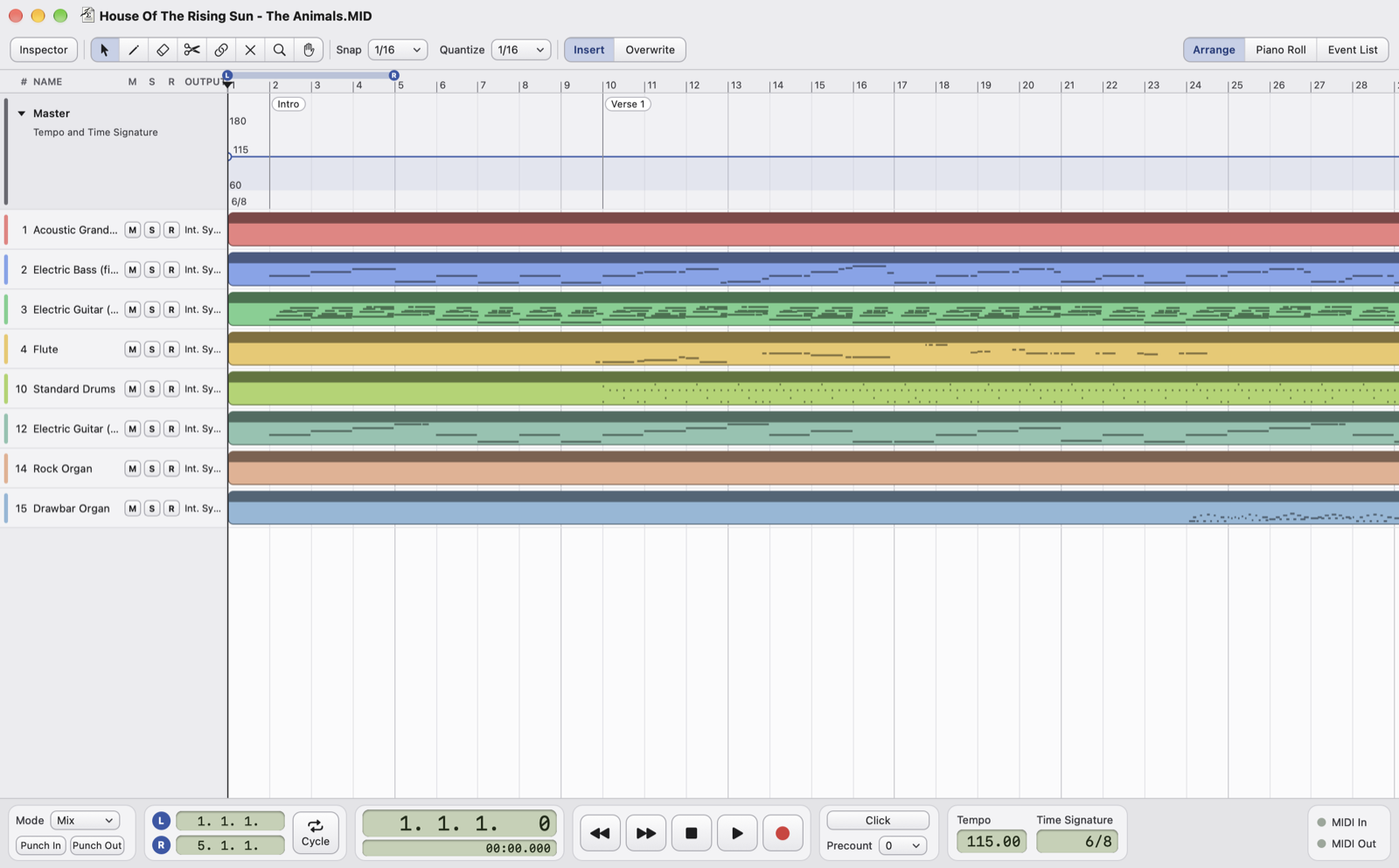
- Master rowThe triangle (or View › Tempo Track) opens the row taller, as a tempo track.
- Tempo lineThe tempo in steps along the song. Double-click (or the pencil) on an empty area adds a point, with Snap; drag a point horizontally to move it, vertically to change the BPM; ⌫ deletes the selected one. From 10 to 300 BPM.
- Time signatureThe time signature changes, below the tempo line.
- In the transport barTempo and time signature at the cursor, ready to type.
Changing the tempo
- Typing a BPM in the transport bar changes the tempo in effect at the cursor, that is the last change before the cursor.
- With ⌥-Return the new BPM applies to the whole song, in proportion: all tempo changes move together.
- View › Tempo Change List opens the Master Event List showing only tempos and time signatures, to fix them by typing values.
Changing the time signature
- Type it in the transport bar, or right-click the Master row: Insert Time Signature Here…, Change Time Signature…, Delete Time Signature (the first one can't be deleted).
- A time signature starts at the beginning of a bar, and the ruler and grid follow it. The music stays where it is: notes don't move.