Coach
The heart of the app. The song's melody scrolls from right to left like a piano roll and, as you sing, the line of your voice is drawn over the notes: you see note by note whether you are in tune, sharp, flat, early or late.
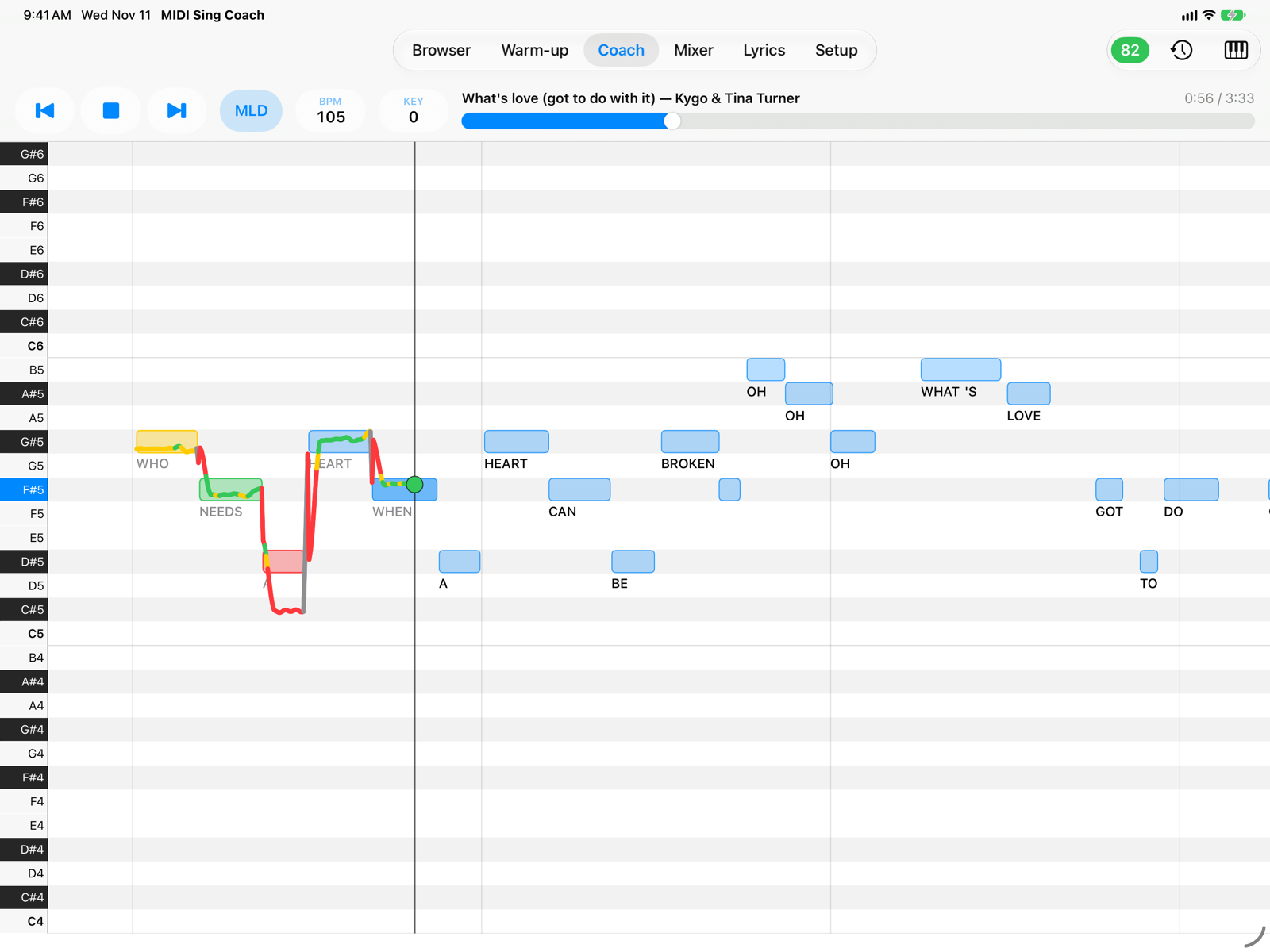
- Live scoreThe score of the current take, from 0 to 100, updated twice a second. Green from 80 up, orange from 50, red below. See Score and takes.
- TakesThe saved takes of this song, to review.
- ChannelThe channel of the melody shown. Usually it is the Melody channel from Setup; if a song has its melody elsewhere, choose it here: it lasts while that song stays loaded.
- KeyboardOne row per semitone, with note names in the Setup notation (C4 or DO4). The range adapts to the song's melody. The key of the note you are singing lights up.
- NowThe vertical line is the current moment: on the left what you have already sung, on the right the notes coming up. The lighter vertical lines are the bars.
- Singing lineYour voice, note by note. Green: in tune (within the Setup tolerance, usually ±25 cents). Yellow: close (within ±50 cents). Red: off. Grey: you sing where the melody rests. The line breaks in silences and on consonants.
- Notes already sungOnce the “now” line has passed, each note takes the colour of its result: green, yellow or red; grey if you didn't sing it.
- Lyrics under the notesIn songs with syllable lyrics (GM karaoke,
.kar, Yamaha XF, Soft Karaoke) each syllable sits under its note. - Live noteThe dot on the “now” line shows the note you are singing right now, in the colour of the comparison. It appears immediately; the line follows with a tiny delay.
M-Live and Solton tracks
In these formats the lyrics come in whole lines: the Coach shows the current line in large type above the piano roll, highlighted as in the Lyrics tab, and the next line below it.
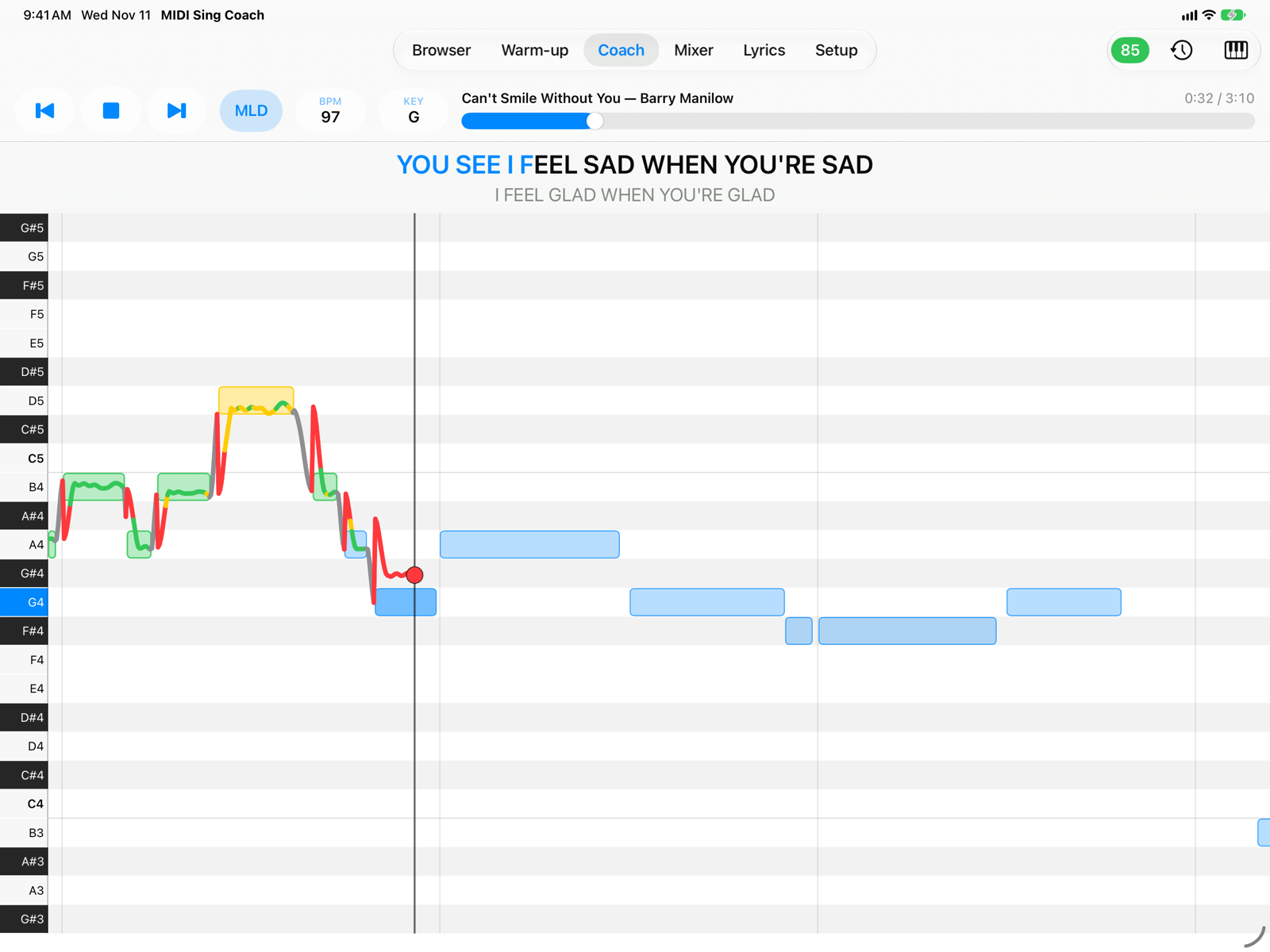
- Current lineThe part already sung is blue. The Lyrics Delay in Setup moves the highlighting earlier or later.
- Next lineSmaller, to get you ready.
Gestures
- Pinch horizontally to see more or fewer seconds (from 4 to 20; 8 to start). The app remembers your choice.
- Drag horizontally, with the song stopped, to move through the song as with the progress bar.
Warnings
- No headphones. If the sound comes from the speaker, a warning appears above the piano roll: the microphone also hears the backing track and the line may follow the melody instead of your voice. Turn Off Melody mutes the melody channel; the ✕ hides the warning for the rest of the session. See Headphones and microphone.
- No notes on the channel. The song has no melody on the Melody channel: choose it from the Channel menu.
- Microphone not allowed. You see the melody but not the line; Open Settings takes you to the app's settings to allow it.
Practice tips
- The first few times keep MLD on: the melody guides you. Once you know the song, turn it off and sing alone over the backing track.
- For a hard passage lower the BPM, or use Practice in the take's result to restart just before the phrase.
- If the song is too high or too low for you, change KEY: the Coach moves with the music.
On iPhone
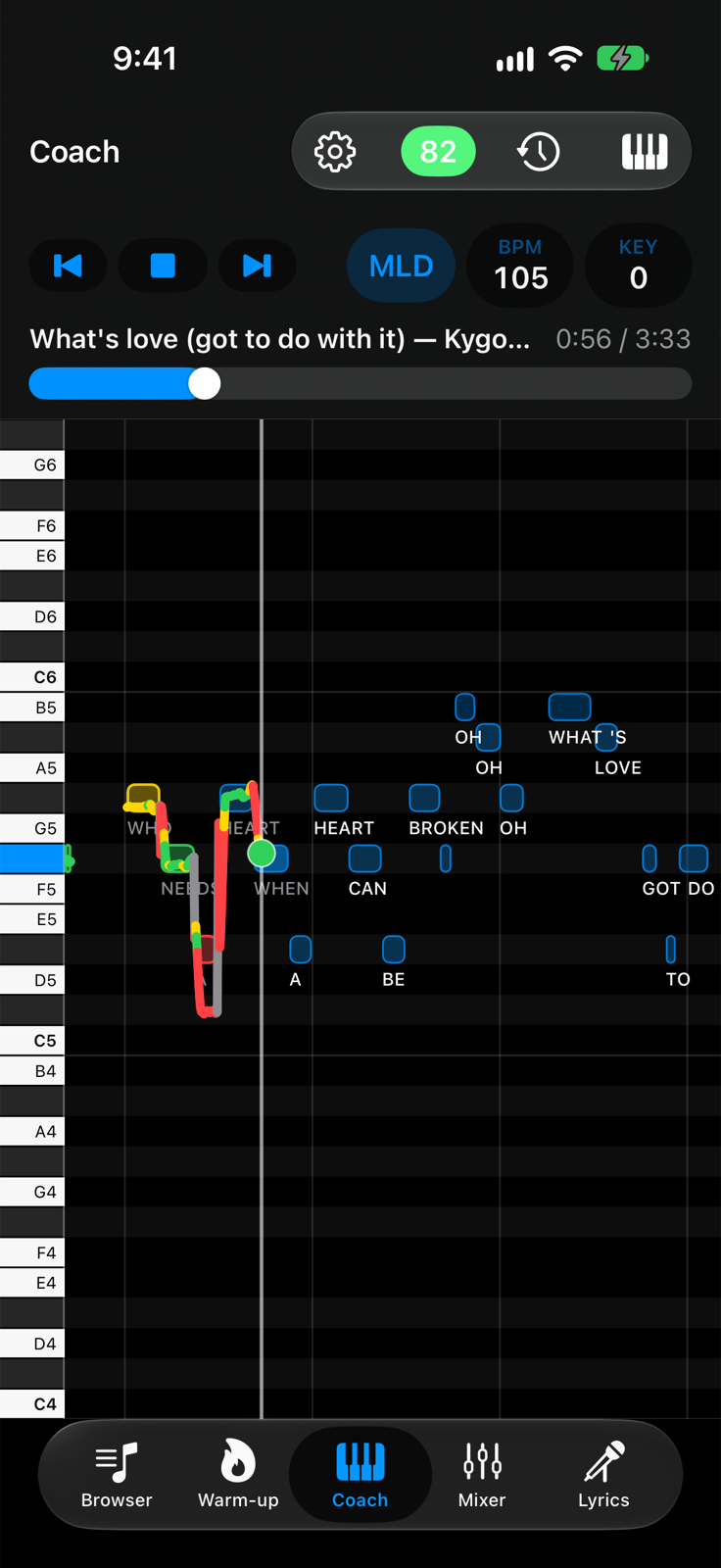
- Score, Takes and ChannelAt the top, as on iPad.
- Piano rollThe same view with a narrower keyboard. In landscape you see more seconds.
- TabsAt the bottom.