Mixer
One strip for every MIDI channel of the song that has notes, with the name of the track or instrument. Changes apply immediately, even while the song plays, and also reach the sound module connected to MIDI Output.
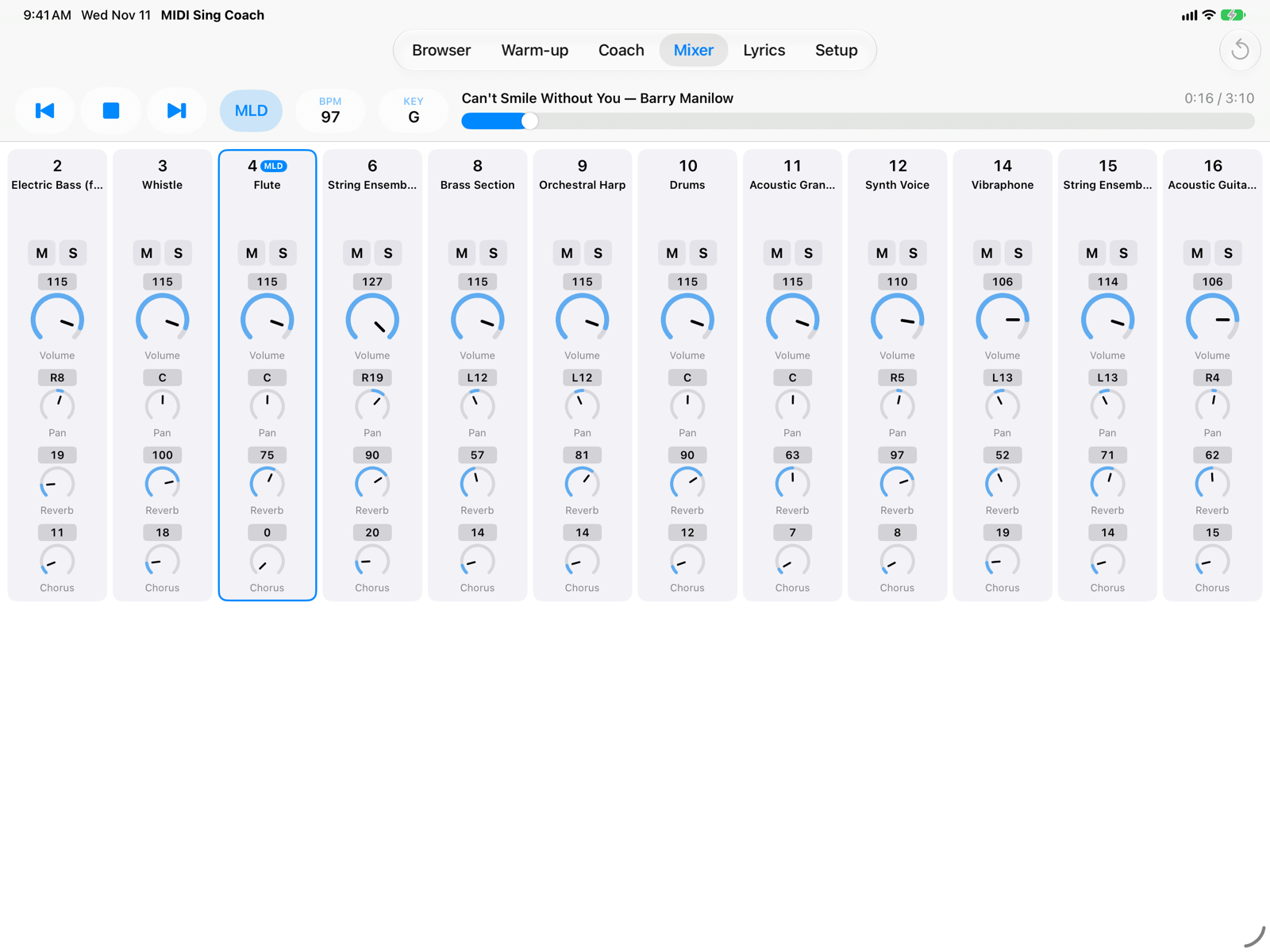
- Channel and instrumentThe channel number (1–16) and the name of the track or General MIDI instrument. Channel 10 is the drums.
- Mute and soloM silences the channel; S plays only the soloed channels, even more than one. For example, solo the melody to learn it on its own.
- KnobsVolume, Pan (stereo position: C centre, L left, R right), Reverb and Chorus. Drag up or right to raise, down or left to lower; tap the number above to type a value (0–127); double-tap the knob to go back to the file's value. Reverb and chorus are disabled if you turn effects off in Setup.
- Melody channelThe blue border and the MLD badge mark the channel the Coach shows and the MLD button mutes.
- Reset MixerBrings every channel back to the file's values.
Until you touch a knob, the channel follows the file's values, even when they change during the song. Once you touch it, your value applies. Loaded again from the Browser, a song starts with the file's mixer.
On iPhone
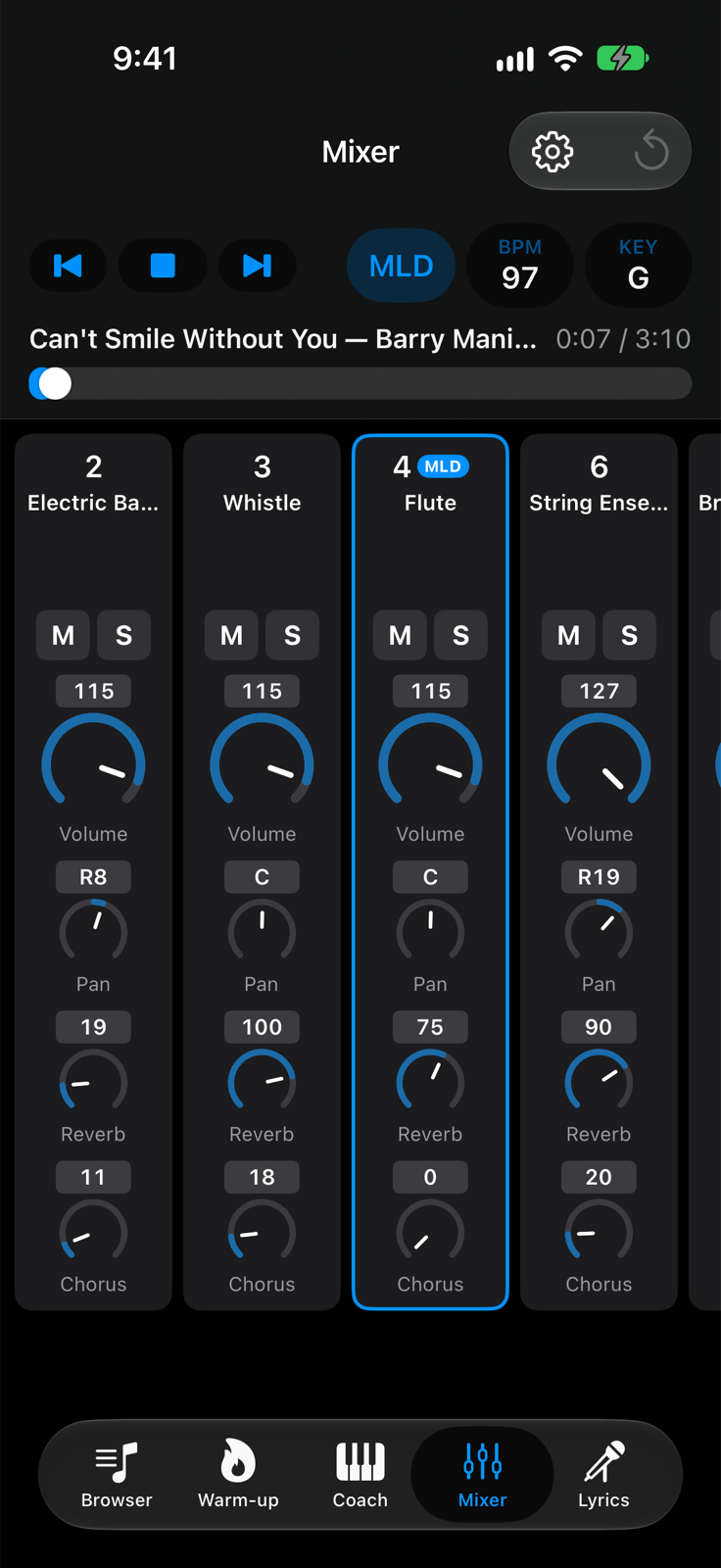
- Reset MixerAt the top right.
- Channel stripsThe same controls as on iPad, more compact. The strips scroll horizontally.