Browser
Your backing track library: every .mid, .midi and .kar file in the chosen folder, with title, artist, BPM, key and length, and an icon that tells you at a glance whether a song has karaoke lyrics.
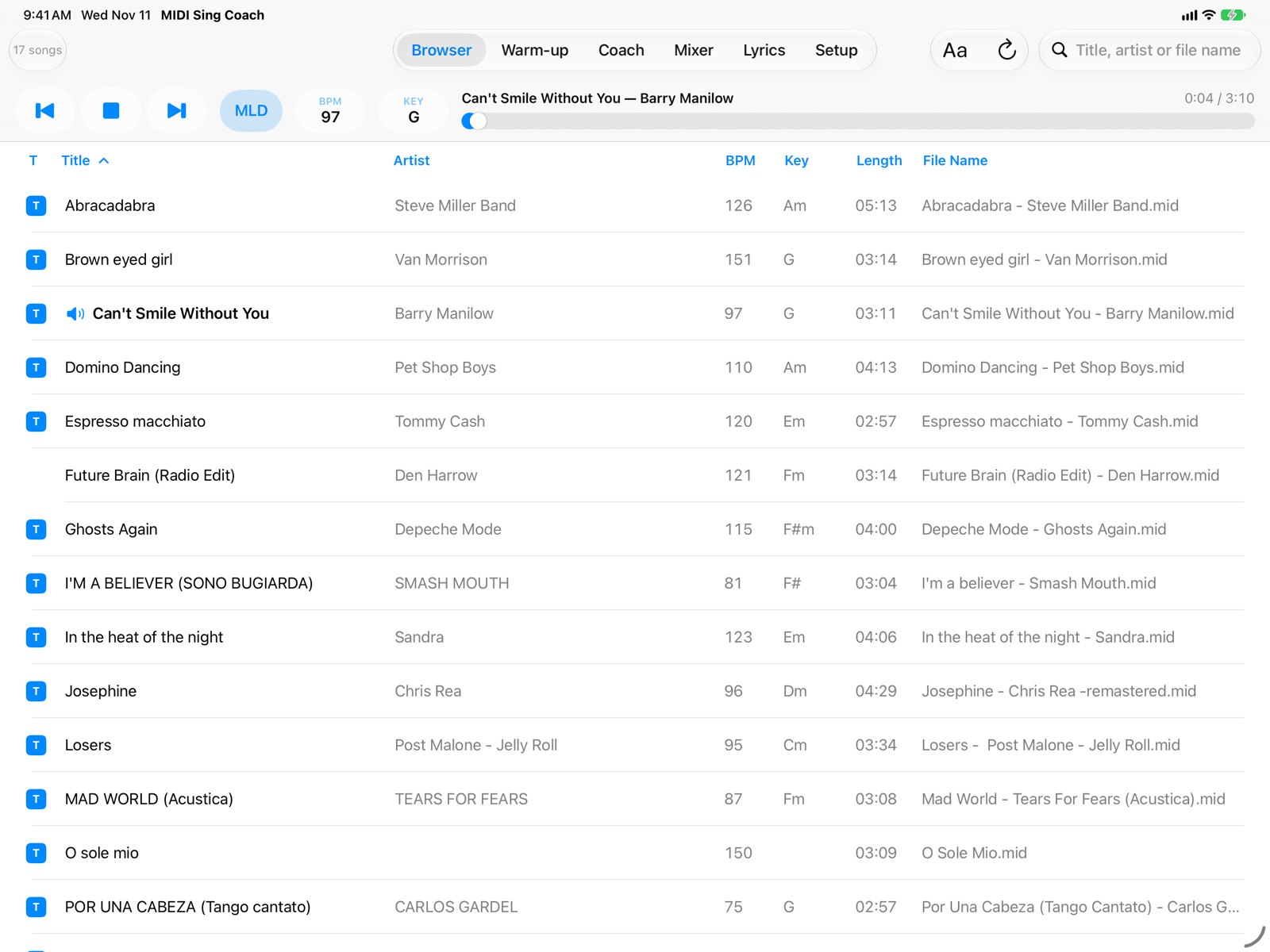
- Number of songsHow many songs are in the list right now, taking search and filter into account.
- TabsBrowser, Warm-up, Coach, Mixer, Lyrics and Setup. On iPad they are at the top; the transport bar below is the same in every tab.
- Filter and refreshAa shows only songs with lyrics. The circular arrow rereads the folder, to show files you have just copied.
- SearchIn title, artist and file name, ignoring case and accents. With an external keyboard: ⌘ F.
- Transport barPrevious song, Play/Stop, next song, melody (MLD), BPM, key (KEY) and progress. See Transport bar.
- SortingTap a column name to sort the list, tap again to reverse the order.
- T iconThe song contains karaoke lyrics: you will see them in the Coach and in the Lyrics tab. It works for every supported format (M-Live, GM karaoke and
.kar, Yamaha XF, Solton, Soft Karaoke). - Loaded songThe speaker and the bold title mark the song that is in the player.
Loading a song
Tap a row: the song loads and the transport bar shows its title and length. If a song was playing, the new one starts right away; otherwise press Play. To sing, then switch to the Coach tab.
Touch and hold a song for its menu: Load and Show File Info, with the metadata read from the file.
From the Browser a song always starts with the file's values: original key, BPM and mixer. Changes to KEY, BPM and Mixer last while the song stays loaded.
Where to put your tracks
The app contains no MIDI backing tracks, apart from two copyright-free examples: you fill the library yourself, with your own tracks, ones you buy, or free ones from non-commercial sites. See Your MIDI files.
- The app's folder. In the Files app: On My iPad › MIDI Sing Coach. Copy the files there and go back to the app: the list updates by itself.
- An external folder. In Setup › Library › Choose Folder… you can use a folder on iCloud Drive, a USB-C stick or drive, or a network server. The app remembers it; if it can't be reached it tells you, and opens it again when you return to the app or tap Refresh.
With 50 songs or more, a thin bar appears along the right edge of the list: drag it to jump straight to any point of the library. Reading a folder with thousands of files takes a few minutes the first time; after that it opens instantly.
On iPhone
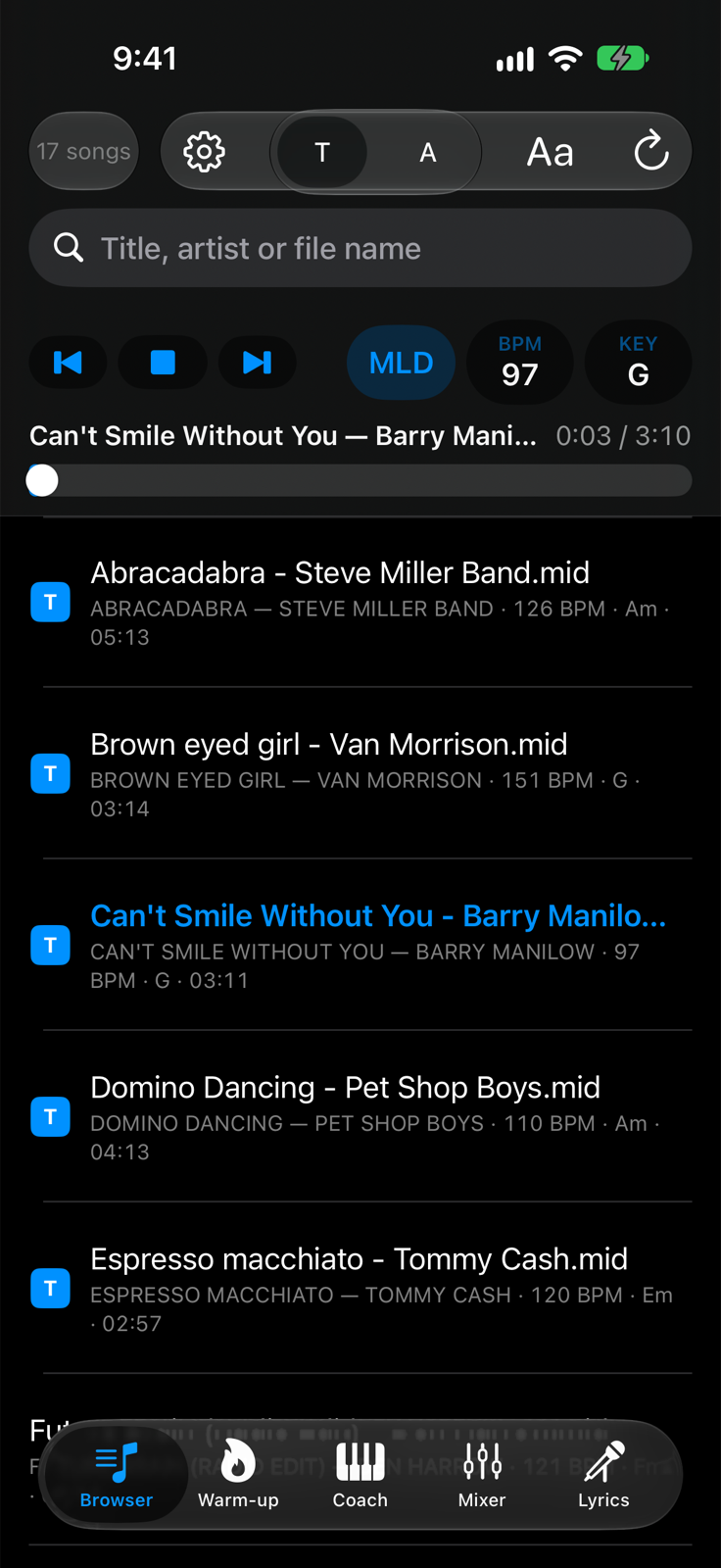
- T / ASort by Title or by Artist.
- Filter, refresh, searchThe same commands as on iPad.
- Transport barOn two rows: commands at the top, title and progress below.
- Song rowTitle and, below, artist, BPM, key and length. The T icon is on the left.
- TabsAt the bottom: Browser, Warm-up, Coach, Mixer and Lyrics.
- SetupOn iPhone it is not a tab: the gear opens it from any tab.