Setup
All the app's options, saved immediately: there is no Save button. On iPad the sections are on a single scrolling page. On iPhone Setup is not a tab: open it with the gear at the top right, in any tab, and close it with Done.
Singing
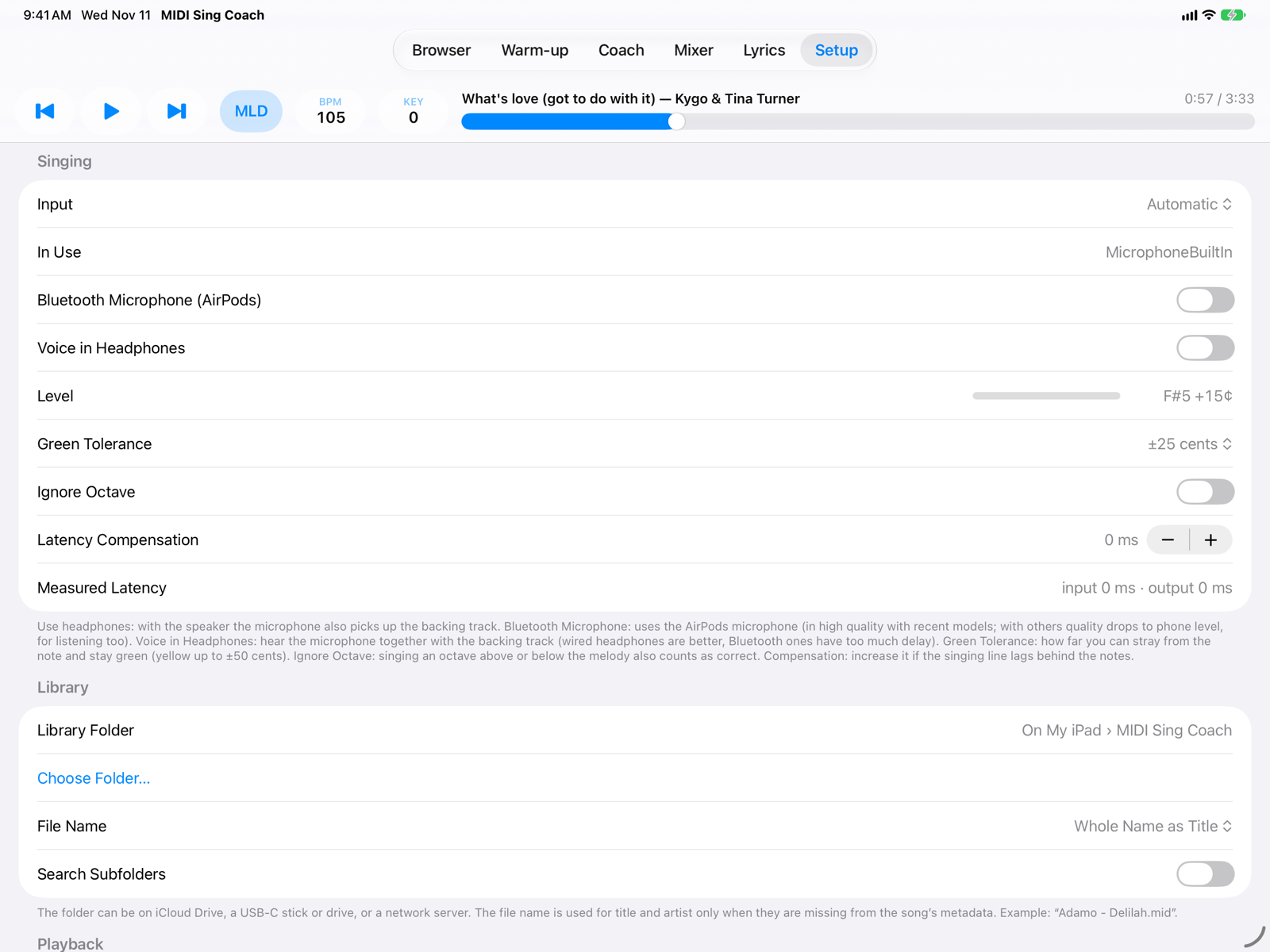
- Input: the microphone to use; with Automatic the system decides. In Use shows the active one.
- Bluetooth Microphone (AirPods): uses the Bluetooth headphones' microphone instead of the iPad's. See Headphones and microphone.
- Voice in Headphones and Voice Volume: hear the microphone together with the backing track. Without headphones it stays silent, to avoid feedback.
- Level: the bar moves when you sing and on the right you see the note the app hears, with its offset in cents. Use it to check that the microphone works.
- Green Tolerance: how far you can stray from the note and stay green (±15, ±25 or ±35 cents). The tighter it is, the stricter the score.
- Ignore Octave: singing an octave above or below the melody also counts as correct, and the line is drawn over the notes.
- Latency Compensation: shifts the singing line if it arrives late or early on the notes (especially with Bluetooth headphones). Measured Latency shows the delays reported by iOS.
Library
- Library Folder: the app's folder (On My iPad › MIDI Sing Coach) or a folder chosen with Choose Folder… on iCloud Drive, a USB-C stick or drive, or a network server.
- File Name: how to take title and artist from the file name when they are missing from the metadata (whole name,
Artist - TitleorTitle - Artist). - Search Subfolders: also includes files in subfolders.
Playback, metronome and audio output
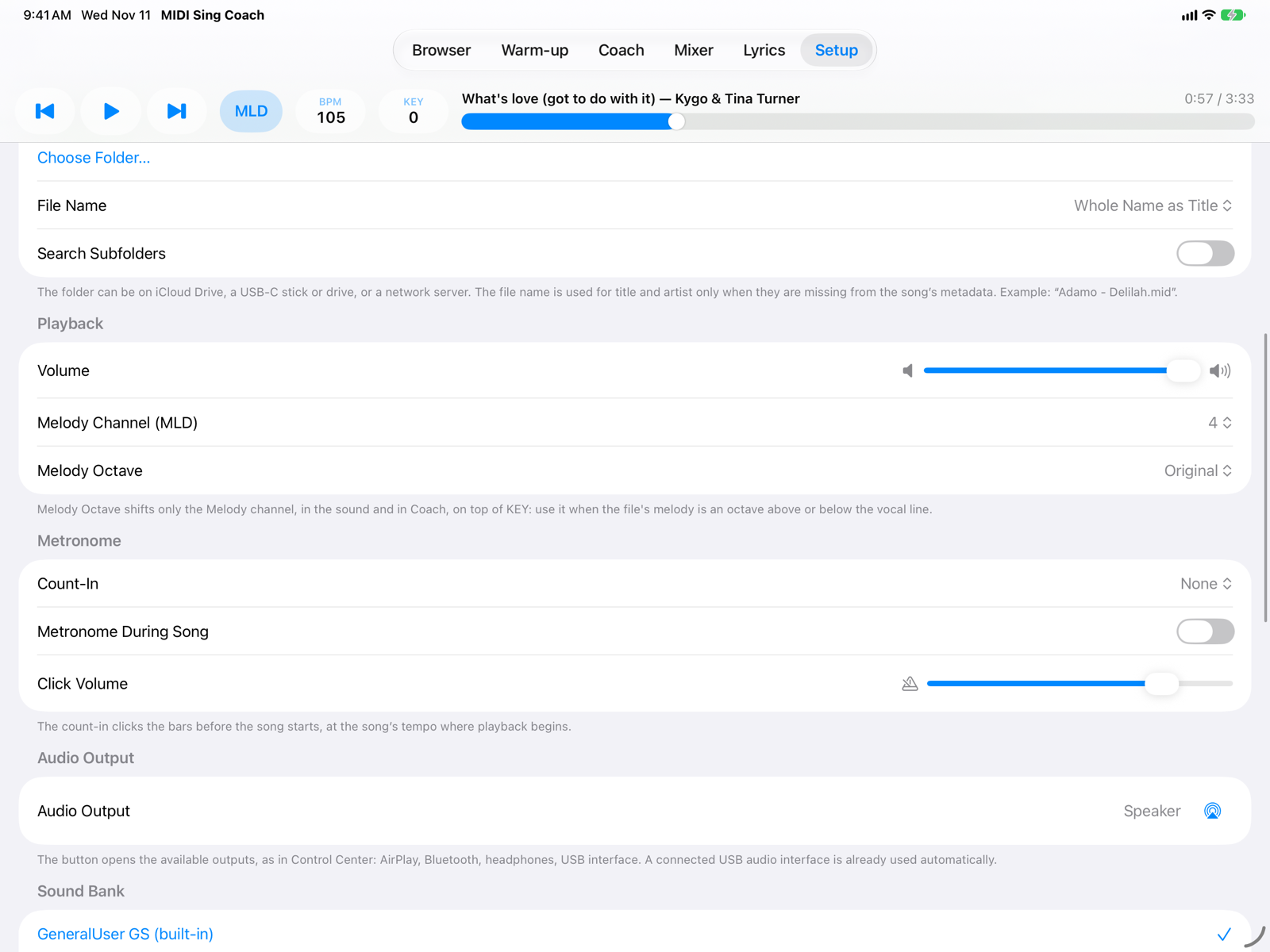
- Volume: the overall volume of the backing track.
- Melody Channel (MLD): the melody channel, the one the Coach shows and the MLD button mutes. In most backing tracks it is 4.
- Melody Octave: moves only the melody by one or two octaves, in the sound and in the Coach, on top of KEY. Use it when the file's melody is written an octave above or below the voice.
- Count-In: one or two bars of count before the start. Metronome During Song and Click Volume.
- Audio Output: the output in use and the button to choose another one (headphones, Bluetooth, AirPlay, USB interface), as in Control Center.
Sound
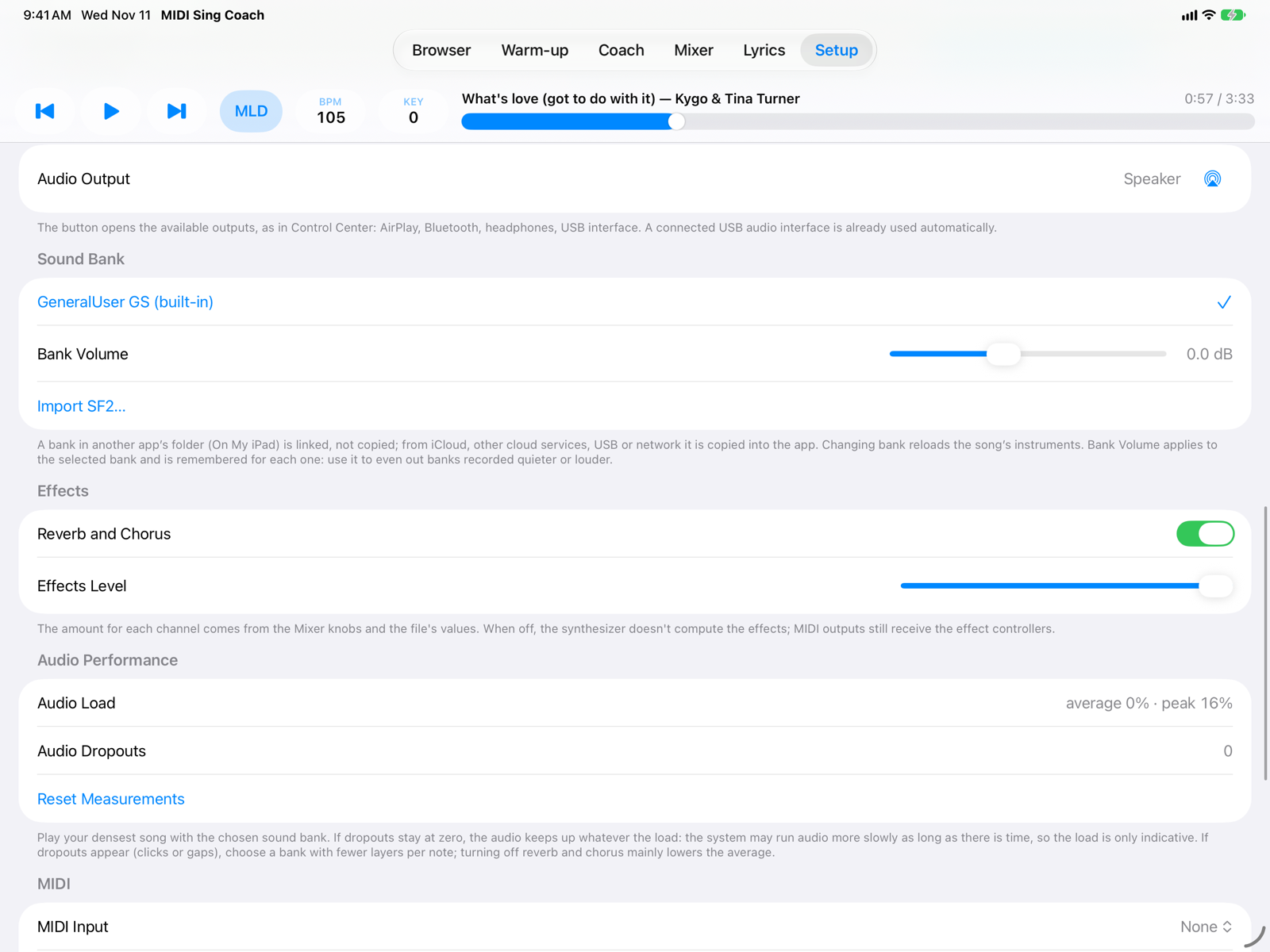
- Sound Bank: the included bank, GeneralUser GS, or a SoundFont bank (
.sf2) imported with Import SF2…. A bank in another app's folder is linked without copying it. Bank Volume evens out banks recorded quieter or louder and is remembered for each one. - Effects: turns reverb and chorus on or off and sets their overall level. The amount per channel is set in the Mixer.
- Audio Performance: the synthesizer load and the number of audio dropouts. If you hear clicks or gaps and the dropouts go up, choose a lighter bank or turn the effects off.
MIDI, Lyrics and appearance
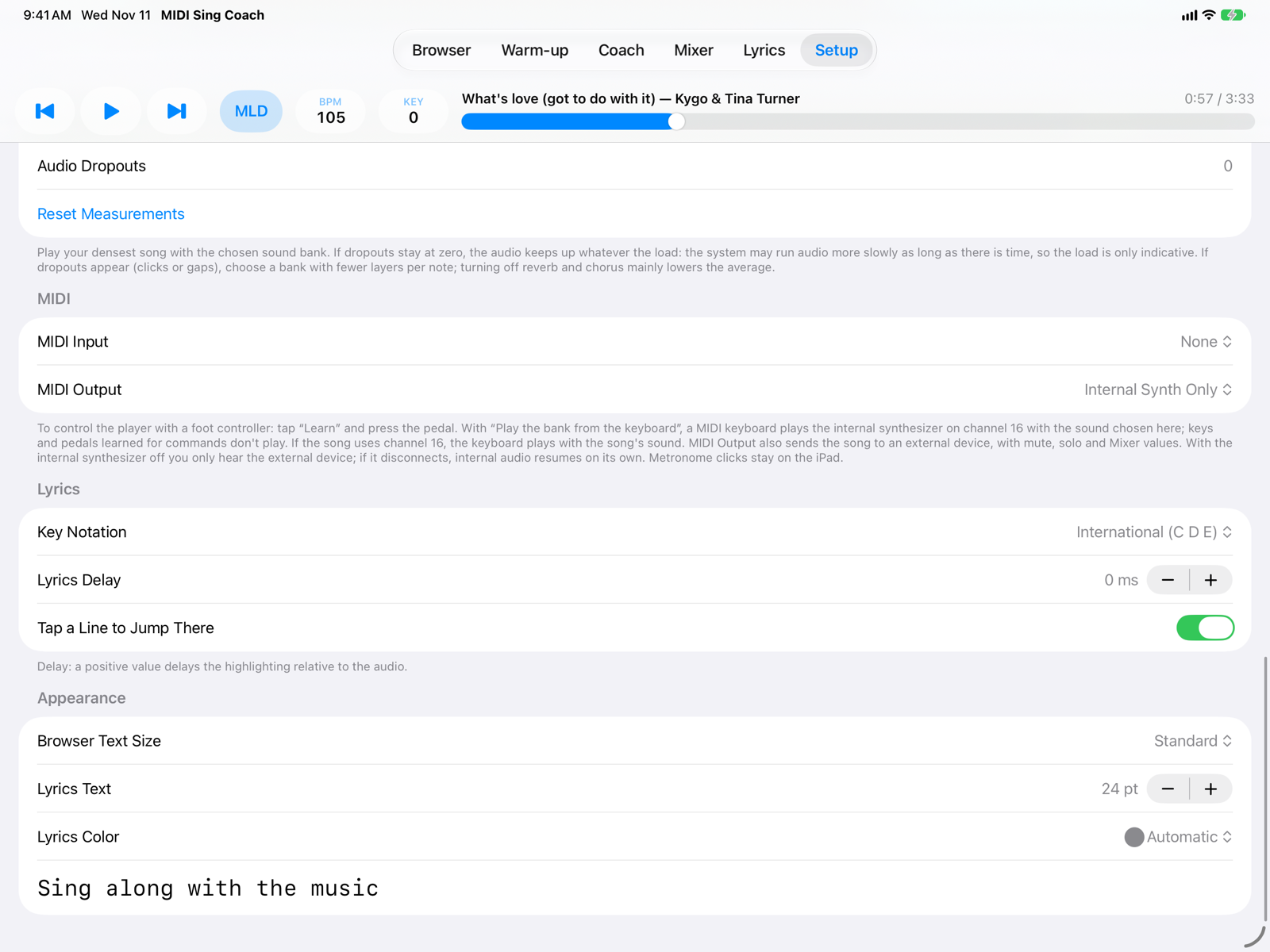
- MIDI Input: a foot controller or MIDI controller for Play/Stop and previous/next song (tap Learn and press the pedal). With Play the bank from the keyboard, a MIDI keyboard plays the synthesizer on channel 16, with the sound chosen here.
- MIDI Output: also sends the backing track to a sound module or keyboard, with mute, solo and Mixer values. Turning off the Internal Synth you hear only the external device.
- Key Notation: international (C D E) or Italian (DO RE MI), for the key and for the note names in the Coach.
- Lyrics Delay: moves the lyrics highlighting earlier (negative) or later (positive) than the audio. Tap a Line to Jump There: in Lyrics, tapping a line restarts the song from there.
- Appearance: Browser text size, lyrics text size and colour, with a preview.