Inputs and outputs
The left column holds the inputs, the sources MIDI comes from (keyboards, controllers, pads, apps). The right column holds the outputs, the destinations (sound modules, synths, drum machines, apps). Each column shows only the ports you have added.
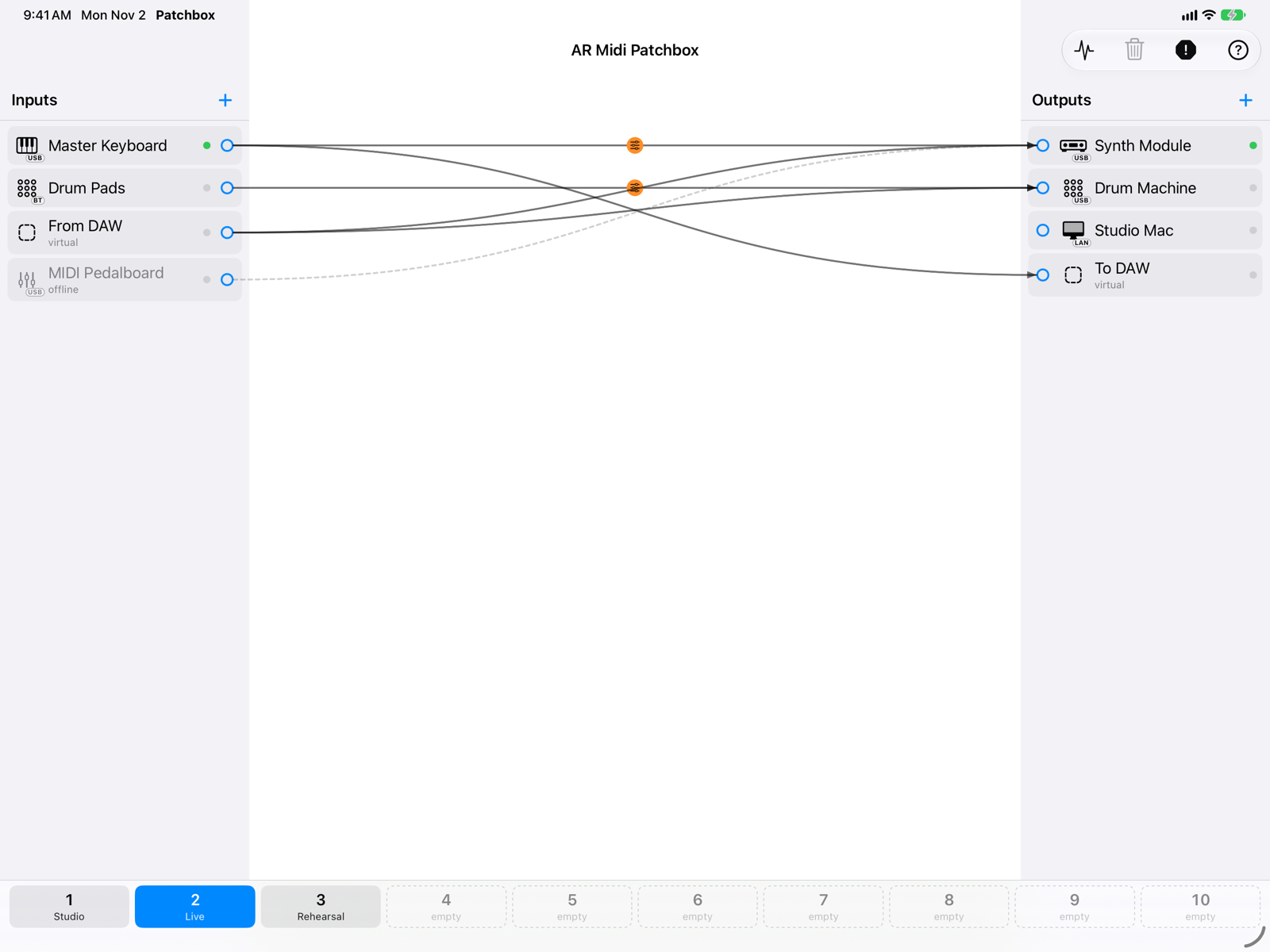
- + buttonAdds a port to the column: a system port not yet in the column, a new virtual port, Bluetooth MIDI or network MIDI.
- Icon and connectionThe icon shows the kind of instrument; the badge shows the connection type: USB, BT (Bluetooth), LAN (network), IAC (the Mac's internal bus), APP (a port of another app).
- Activity lightLights up when MIDI goes through that port.
- Connection circleDrag it to a port in the opposite column to create a connection. See Connections.
- Virtual portCreated by the app: other apps see it as a MIDI port with the name you gave it.
- Disconnected portAn instrument that is switched off or unplugged stays in the column, greyed out, with dashed connections. It comes back by itself when you plug it in again.
Adding a port
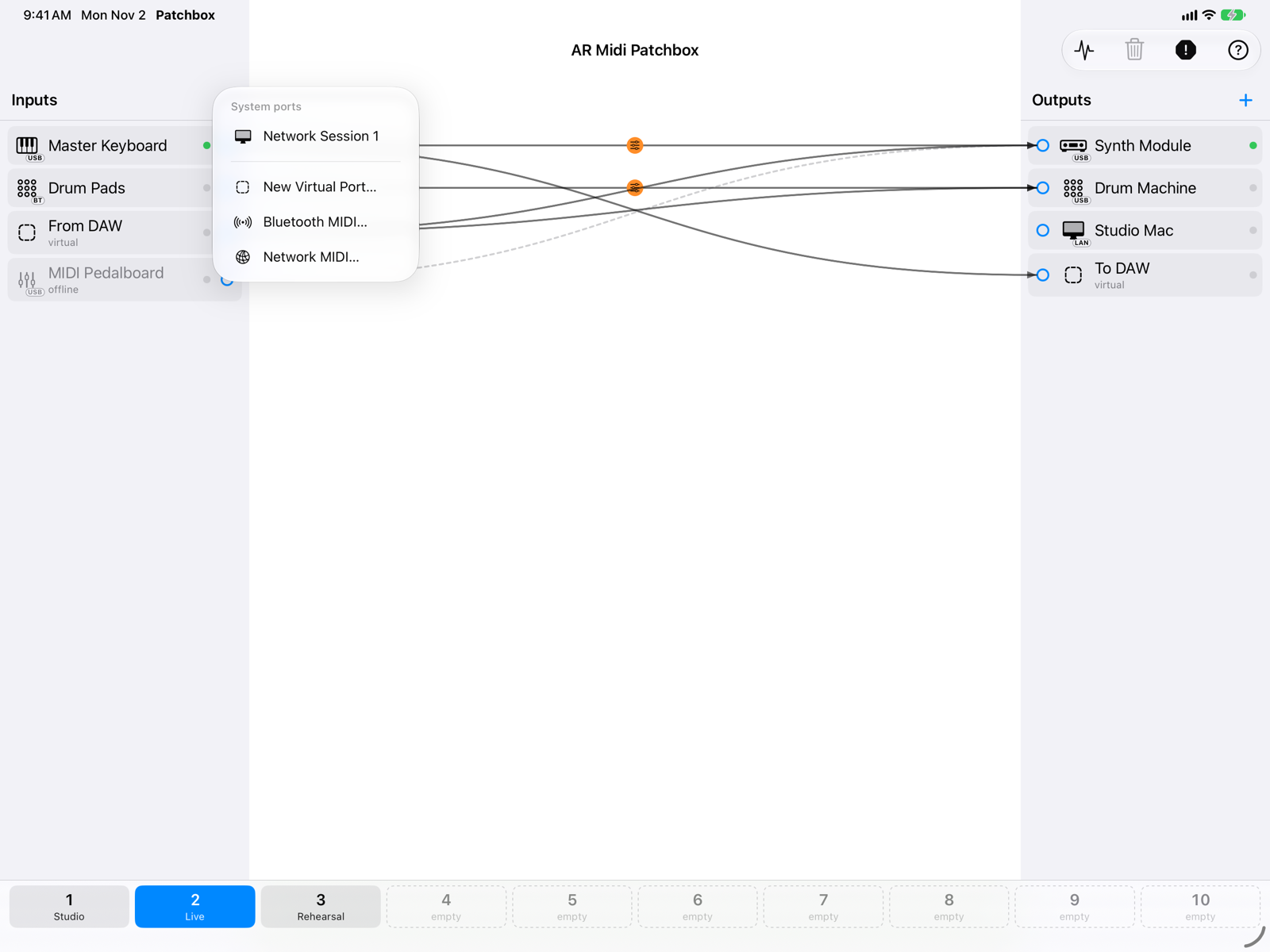
- System portsPorts of instruments, interfaces and other apps that are not in the column yet. Ports created by AR Midi Patchbox are not listed, to avoid loops.
- New Virtual Port…Creates a port with the name you choose.
- Bluetooth MIDI… and Network MIDI…To connect Bluetooth instruments or other devices on the network. See Bluetooth MIDI and Network MIDI.
Virtual ports
A virtual port is a MIDI port created by the app. A virtual input receives the MIDI other apps send to it (for example the MIDI output of a DAW); a virtual output is a source other apps can choose as their input.
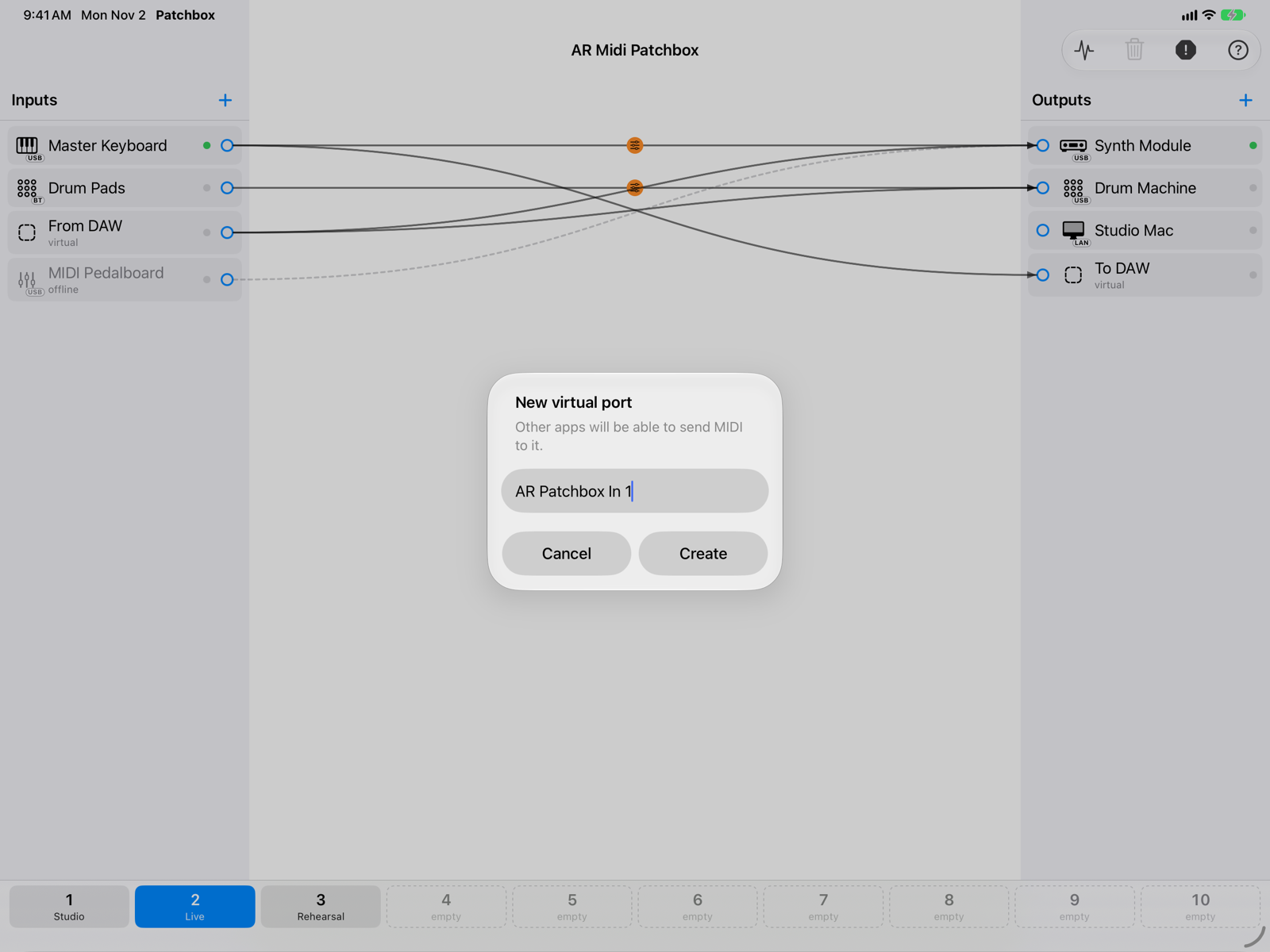
Virtual ports keep their identity from one launch to the next: a DAW that uses them finds them again without choosing them again. When you recall a slot, a virtual port that is there both before and after is not recreated, so other apps stay connected to it.
The port menu
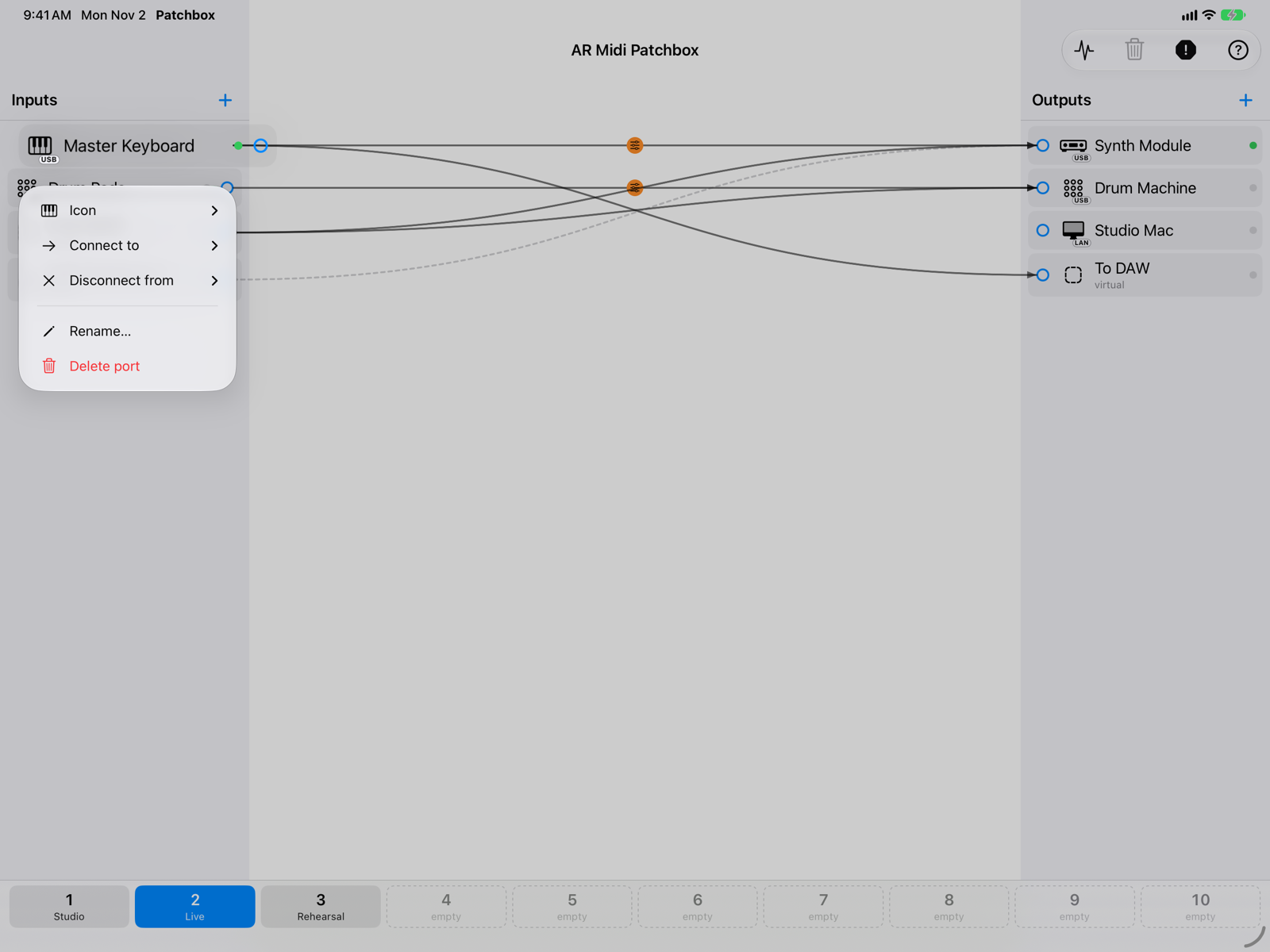
- IconThe icon is chosen automatically from the instrument's name and maker. You can pick another one; Automatic goes back to the suggested one.
- Connect to, Disconnect fromCreate or remove connections without dragging: handy on iPhone and with VoiceOver.
- Rename… and Delete portOnly for virtual ports. System ports have Remove from column instead: the port goes back to the list of the + button.
Open the menu by touching and holding the port on iPad and iPhone, or with a right-click on the Mac.