Memory slots
The bar at the bottom has ten slots. Each one keeps a complete setup: the ports in both columns, the virtual ports, all the connections with their parameters, and the icons. Switch from one song or set to the next with one tap.
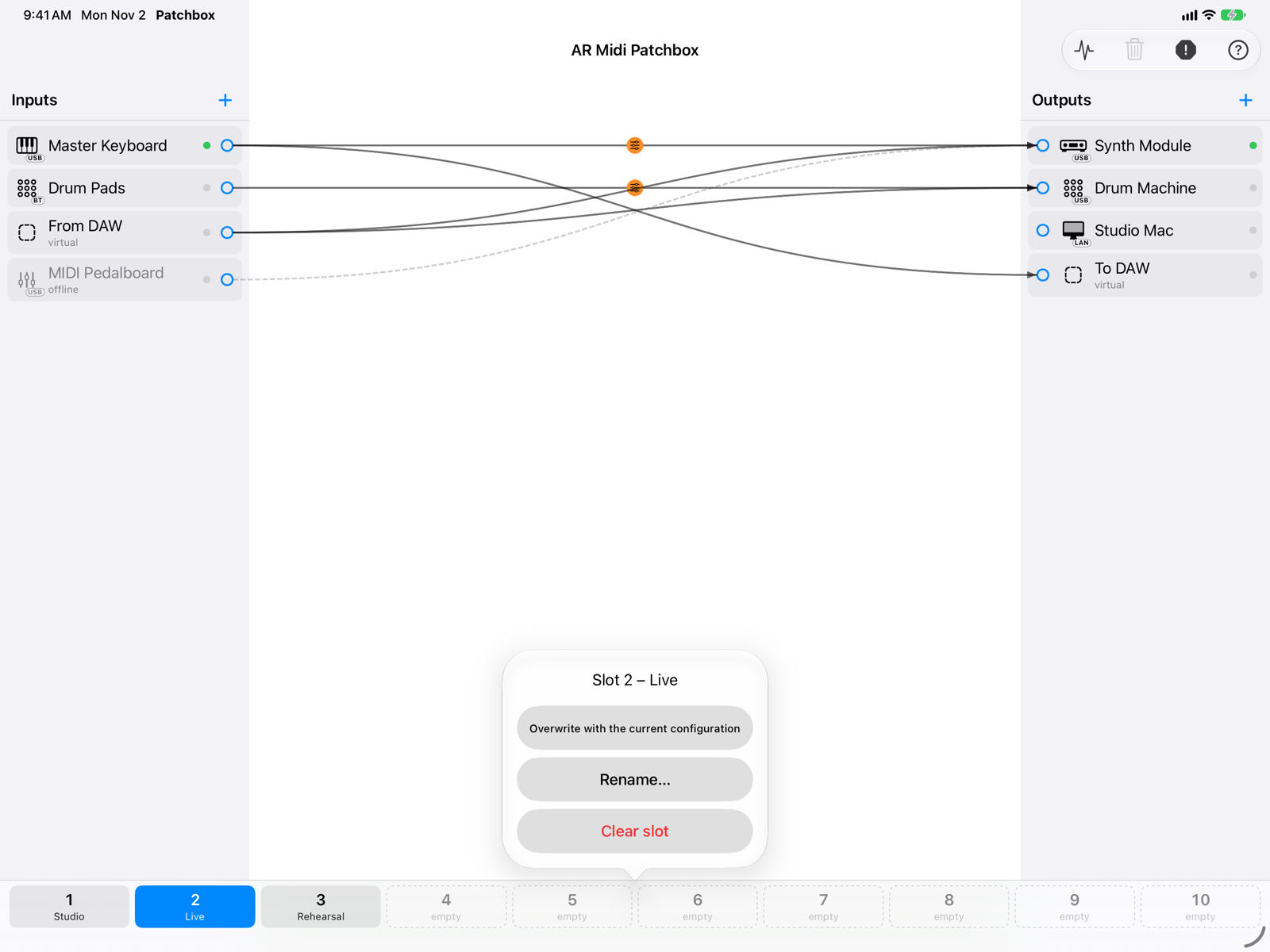
- Saved slotsNumber and name. An empty slot has a dashed border.
- Active slotThe one recalled last, in blue. An orange dot means you changed the setup after recalling it.
- Slot menuTouching and holding a slot that is already in use: Overwrite with the current configuration, Rename…, Clear slot.
| iPad and iPhone | Mac | |
|---|---|---|
| Recall | Tap | Click |
| Save | Touch and hold | ⌥-click, or right-click › Save here |
| Rename, clear | Touch and hold a slot in use | Right-click |
On an empty slot, touch and hold saves right away; on a slot in use it asks first.
What happens when you recall a slot
- The notes that are playing get their Note Off, including those held by Hold.
- Virtual ports are created or deleted according to the slot. A virtual port that is there both before and after stays as it is, so other apps stay connected.
- The new routing takes over all at once.
Slots cannot be recalled via MIDI (Program Change): only from the bar. The current setup is saved automatically and restored at the next launch, even if you did not store it in a slot.