Event monitor
The monitor shows the MIDI messages coming in and going out, decoded: useful to find out why an instrument does not play or what a filter does. Open it with the Monitor button in the top bar; it is off until you open it.
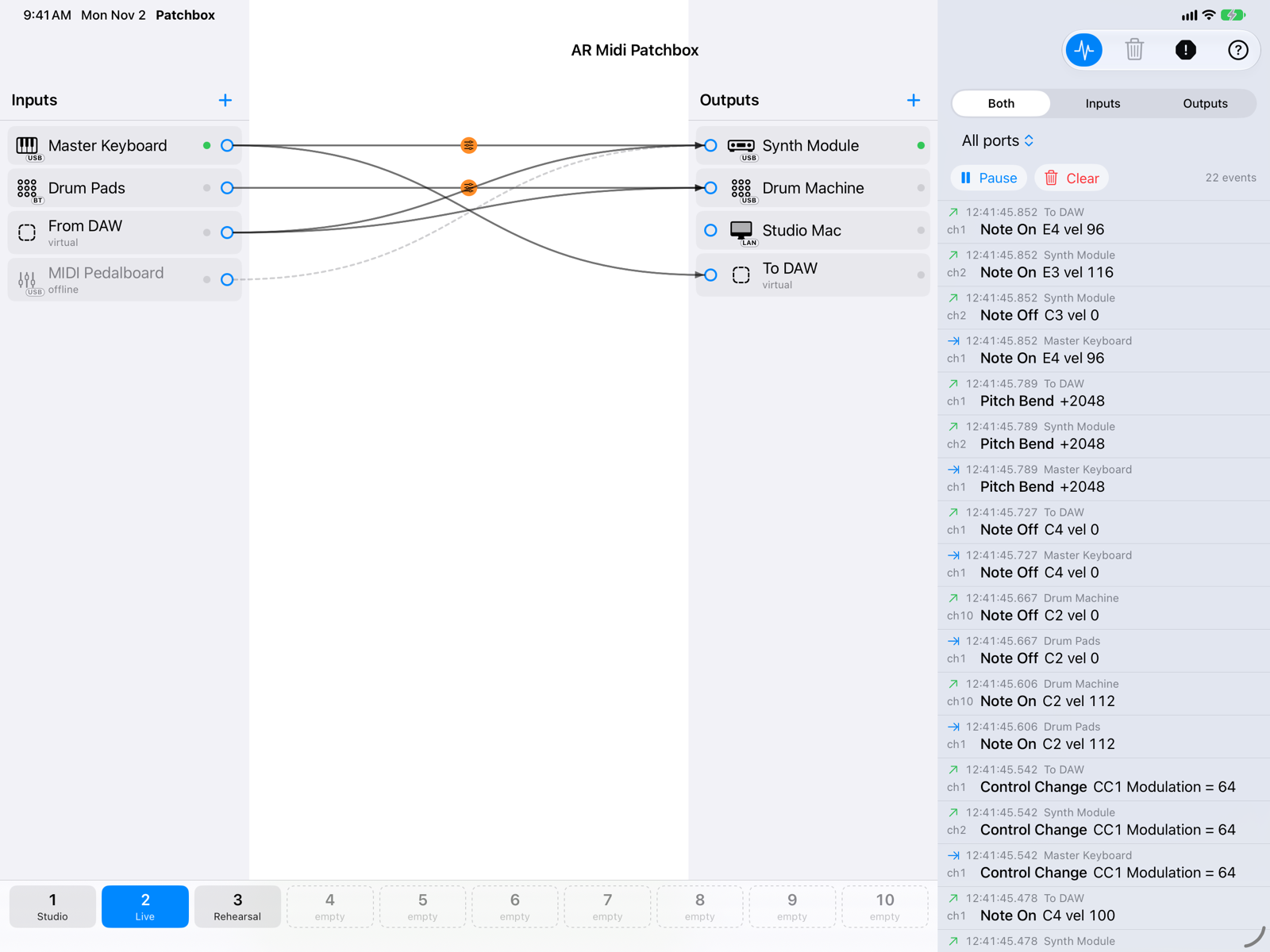
- Monitor buttonOpens and closes the panel.
- Direction and portBoth, Inputs or Outputs, and a single port or all of them.
- Pause and ClearPause freezes the list (events in the meantime are discarded); Clear empties it.
- An eventAn arrow pointing right for inputs, up for outputs; time to the millisecond, port, channel, type and data: note (C4 = 60) and velocity, controller number and name, Program Change from 1 to 128, Pitch Bend centred on 0.
In the example, the E4 played on the Master Keyboard goes out of the Synth Module as E3 with a higher velocity: that is the transpose and velocity of the connection at work.
- The list keeps the last 5,000 events, the newest at the top.
- Orange rows mark dropped messages: a SysEx longer than 64 KB, or messages stopped by the safety limiter (see the FAQ).
- With the monitor closed the app records nothing: the monitor costs the MIDI nothing.
On iPhone
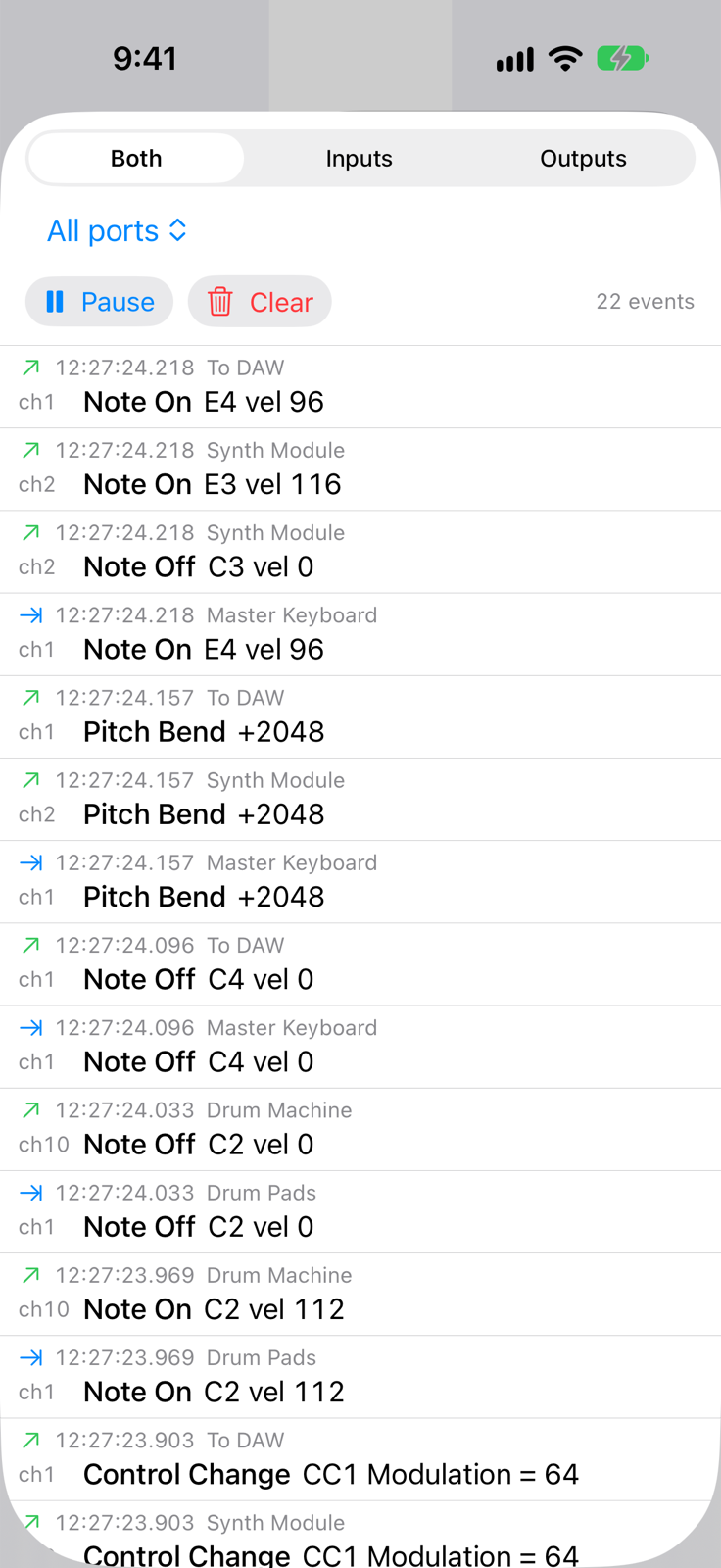
The monitor opens from the bottom, over the patchbay. Close it by dragging it down.