Connections
A connection carries MIDI from an input to an output and is drawn as an arrow. An input can go to several outputs and an output can receive from several inputs: every arrow has its own parameters.
Creating a connection
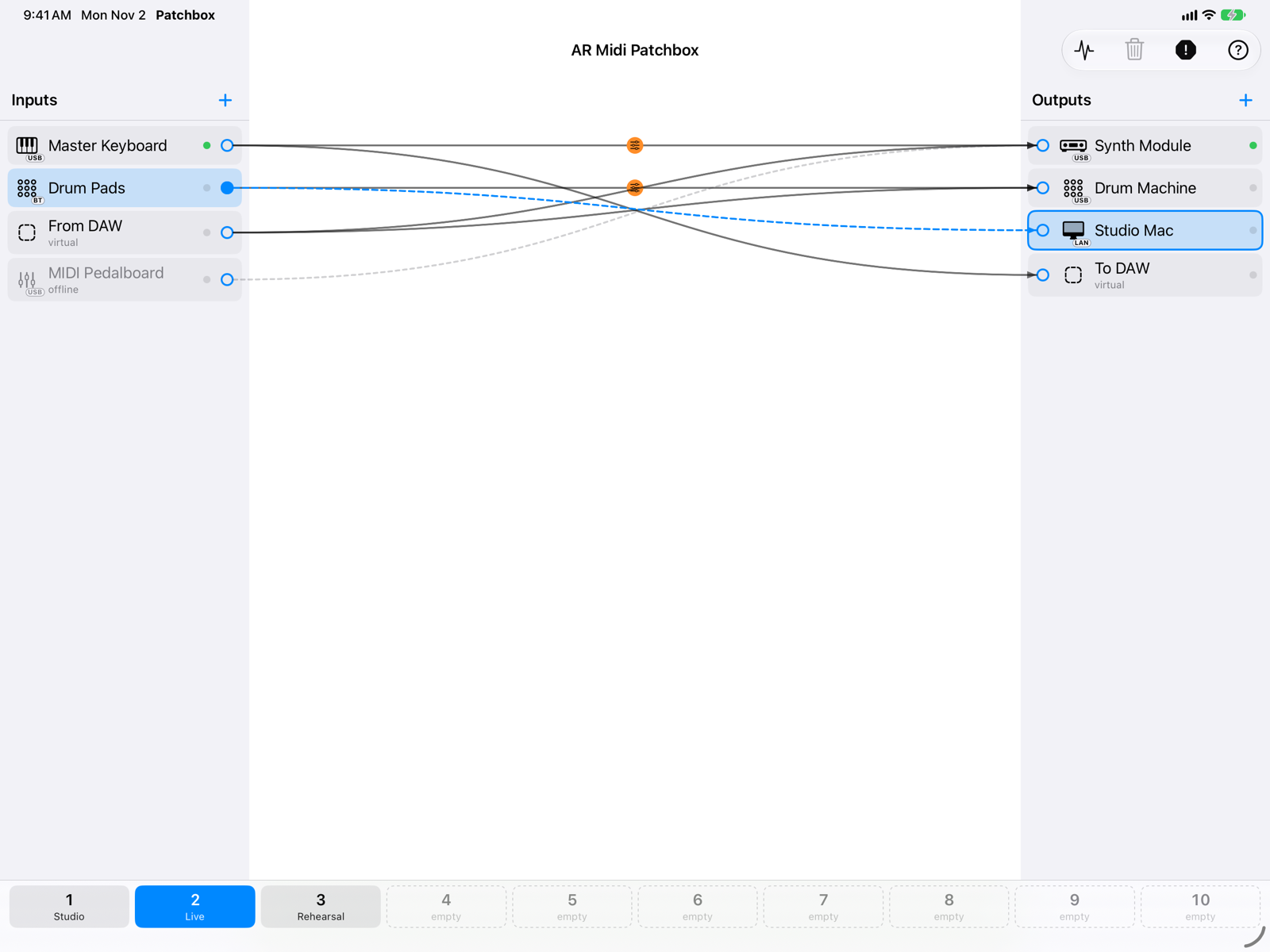
- Start from the circleTouch and drag the circle on the inner side of the port (on the right for inputs, on the left for outputs).
- The arrow follows your fingeror the Mac pointer.
- Release on the highlighted portA port in the opposite column lights up when the connection is possible. You can also start from an output and end on an input.
Without dragging: open the port menu (touch and hold, or right-click) and choose Connect to. With VoiceOver, the Connect to … and Disconnect from … actions are available on every port.
Arrows
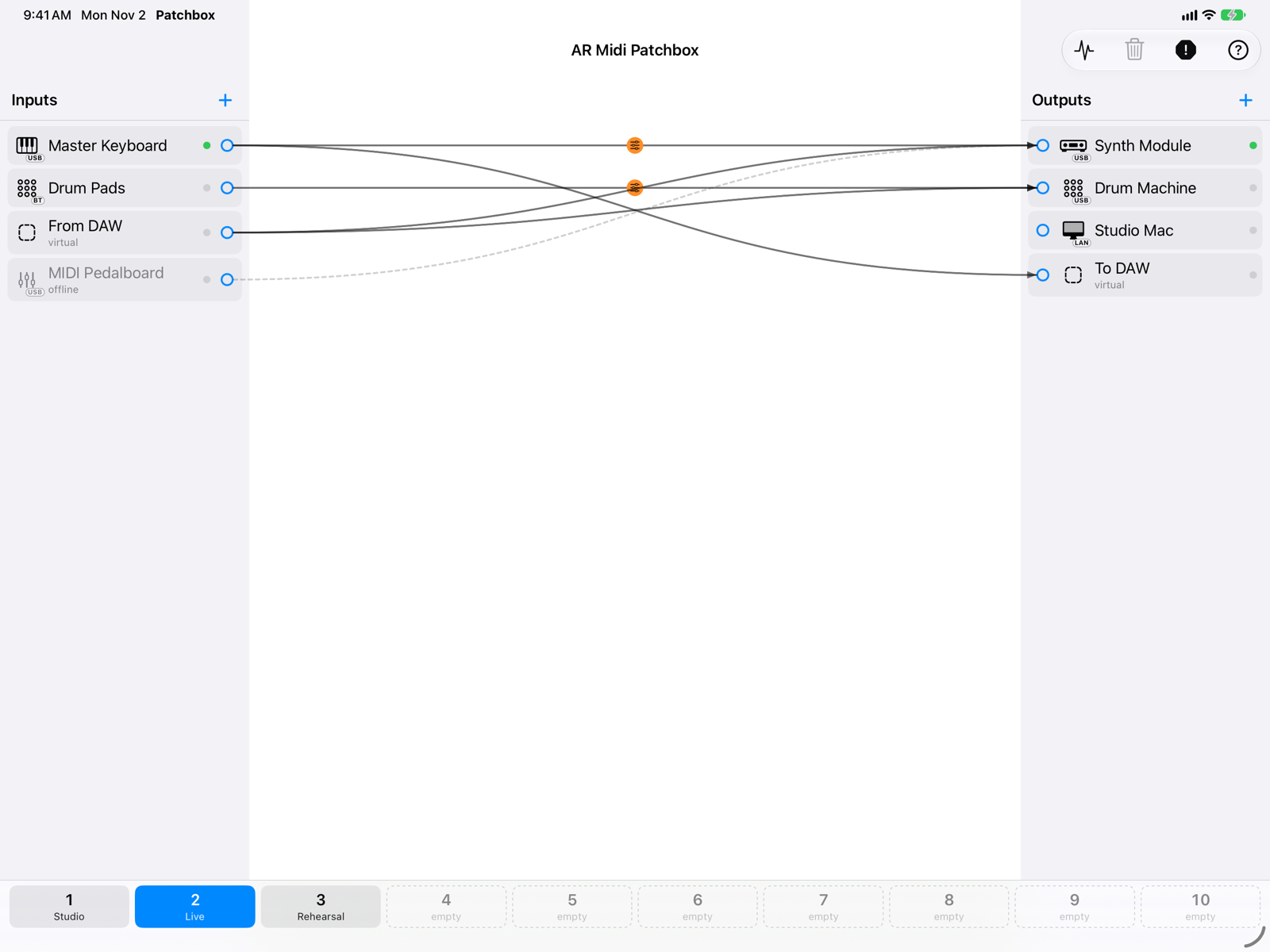
- Orange badgeThe connection has active filters or transformations. Without a badge, MIDI goes through unchanged.
- Dashed arrowOne of the two ports is not connected. The connection stays and works again when the port comes back.
- Several arrows from the same portThe same input can play several instruments, each with its own parameters.
Selecting and deleting
- Tap an arrow (click on the Mac) to select it and open its routing parameters. On iPad and iPhone a tap near the curve is enough.
- Delete: the trash button in the top bar, the Delete key (also with a keyboard attached to the iPad), the Delete connection button at the bottom of the panel, or Disconnect from in the port menu.
- When you delete a connection, the notes it was playing get their Note Off: no stuck notes.
There is at most one connection between the same input and output: its parameters apply to all the MIDI going through it.