Settings
All the app's options are in the AR MIDI Player › Settings… window (⌘ ,), split into five tabs. Changes apply immediately and are remembered between launches.
General
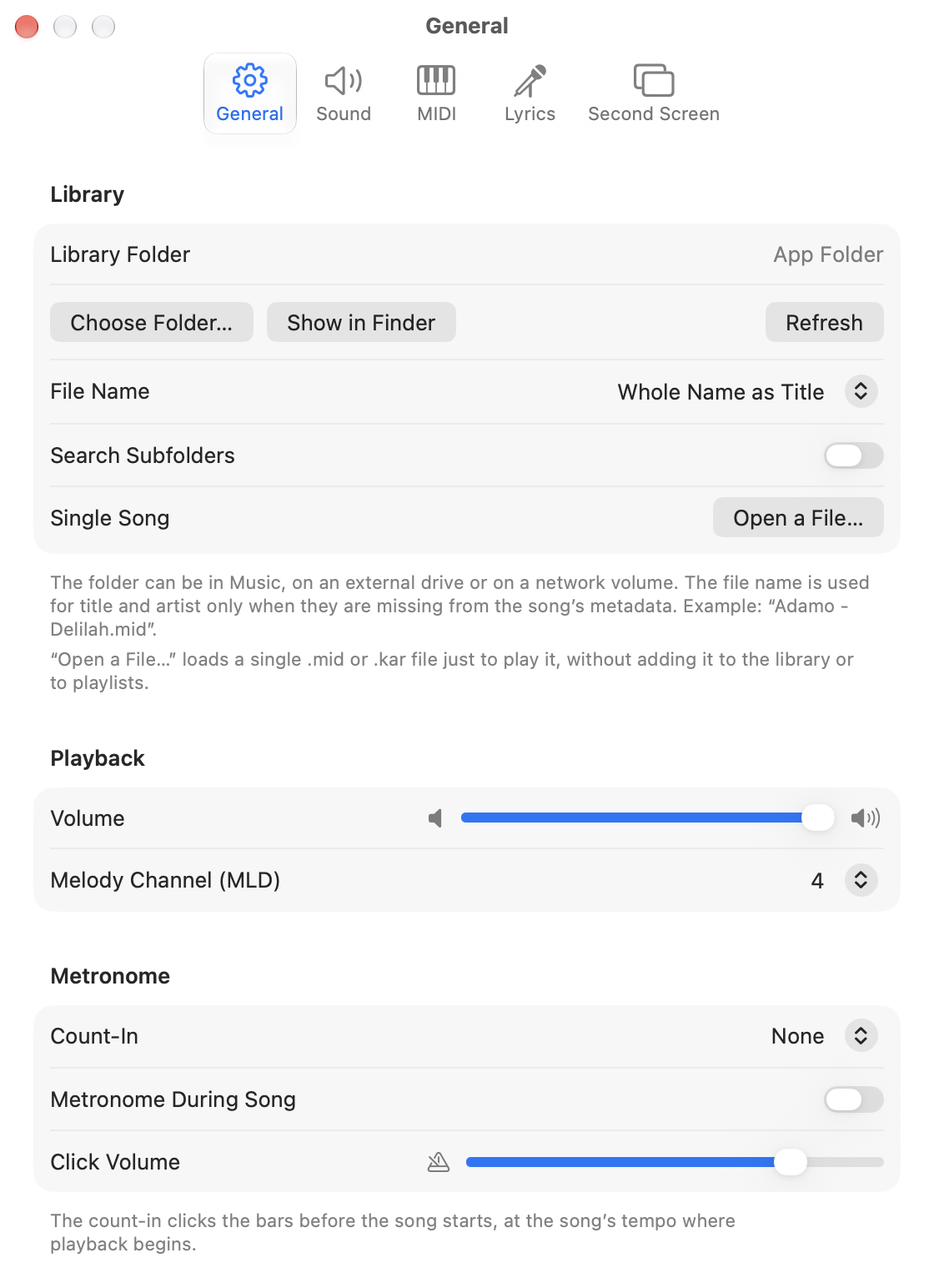
- Library
Library Folder: the app's folder (Music › AR MIDI Player) or one chosen with Choose Folder… (in Music, on an external drive, on a network volume). Show in Finder opens the folder in use so you can copy songs into it; Use App Folder goes back to the app's folder; Refresh reads the folder again.
File Name: how to get title and artist from the file name when they're missing from the metadata (
Artist - Title,Title - Artistor the whole name as title). Search Subfolders includes songs in subfolders. Open a File… loads one file just to play it, without adding it to the library. - PlaybackMain Volume and Melody Channel (MLD), the channel the MLD button mutes (usually 4).
- MetronomeCount-In: none, one or two bars of count before the start. Metronome During Song and Click Volume. The clicks always play on the Mac, even with an expander connected.
Sound
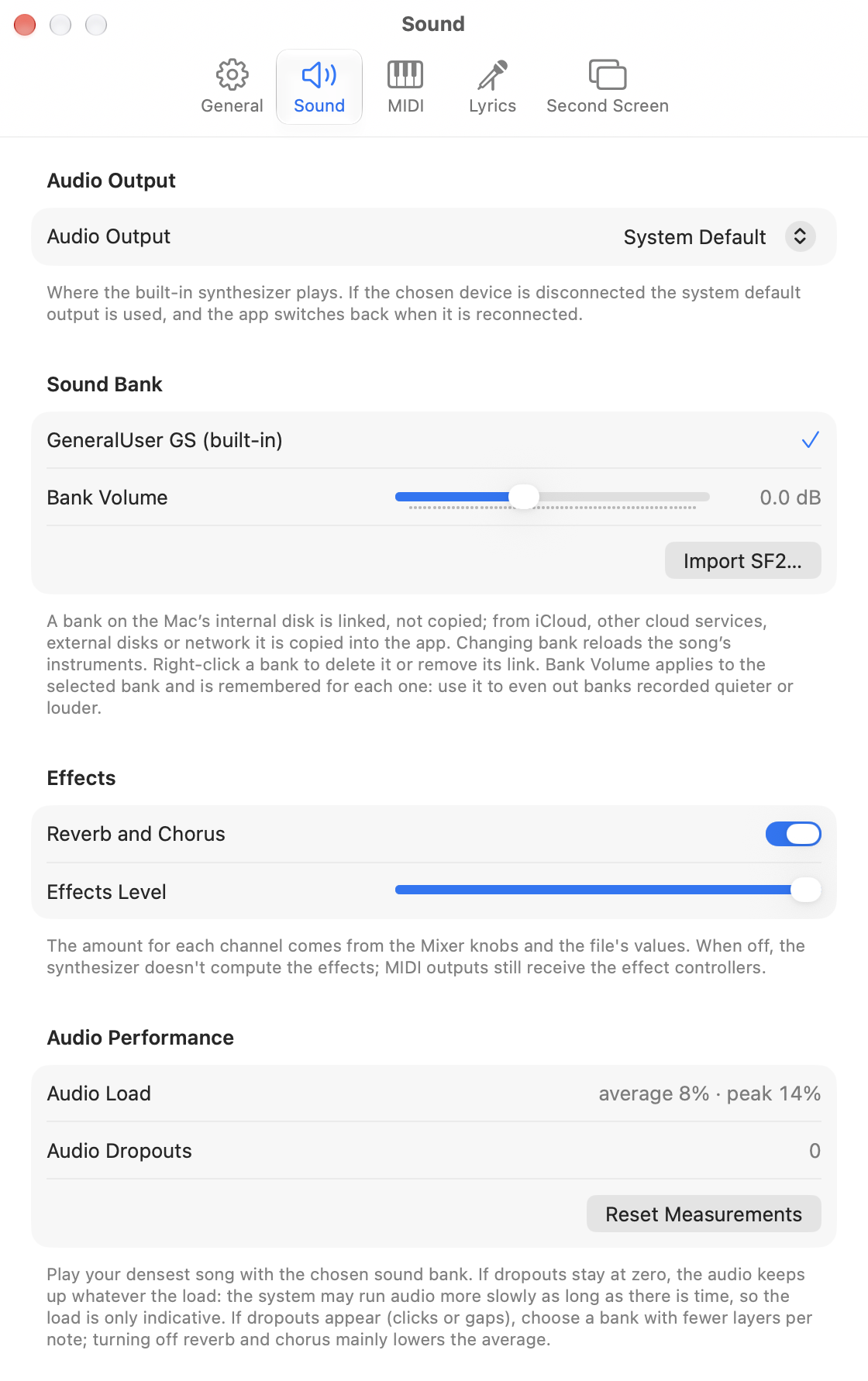
- Audio OutputWhere the built-in synthesizer plays: the system default output or a specific device (audio interface, headphones, speakers). If the chosen device is disconnected the system output is used, and the app switches back when you reconnect it.
- Sound BankThe synthesizer uses GeneralUser GS, included. Import SF2… adds your own SoundFont bank (
.sf2): from the Mac's internal disk it's just linked, not copied, and a link icon appears next to its name; from iCloud, other cloud services, external drives or network it's copied into the app. Click a bank to use it, right-click to delete it or remove its link. Bank Volume is remembered for each bank, to even out banks recorded quieter or louder. - EffectsReverb and Chorus of the built-in synthesizer and their overall Effects Level. The amount per channel is set with the knobs in the Mixer. When off, the synthesizer doesn't compute the effects; MIDI outputs still receive the effect controllers.
- Audio PerformanceTo test a sound bank: play your densest song with the chosen bank. Audio Dropouts counts gaps in the audio and is the number that matters: if it stays at zero, the audio keeps up. Audio Load (average and peak) is only indicative. If dropouts appear, choose a bank with fewer layers per note. Reset Measurements starts counting again.
MIDI
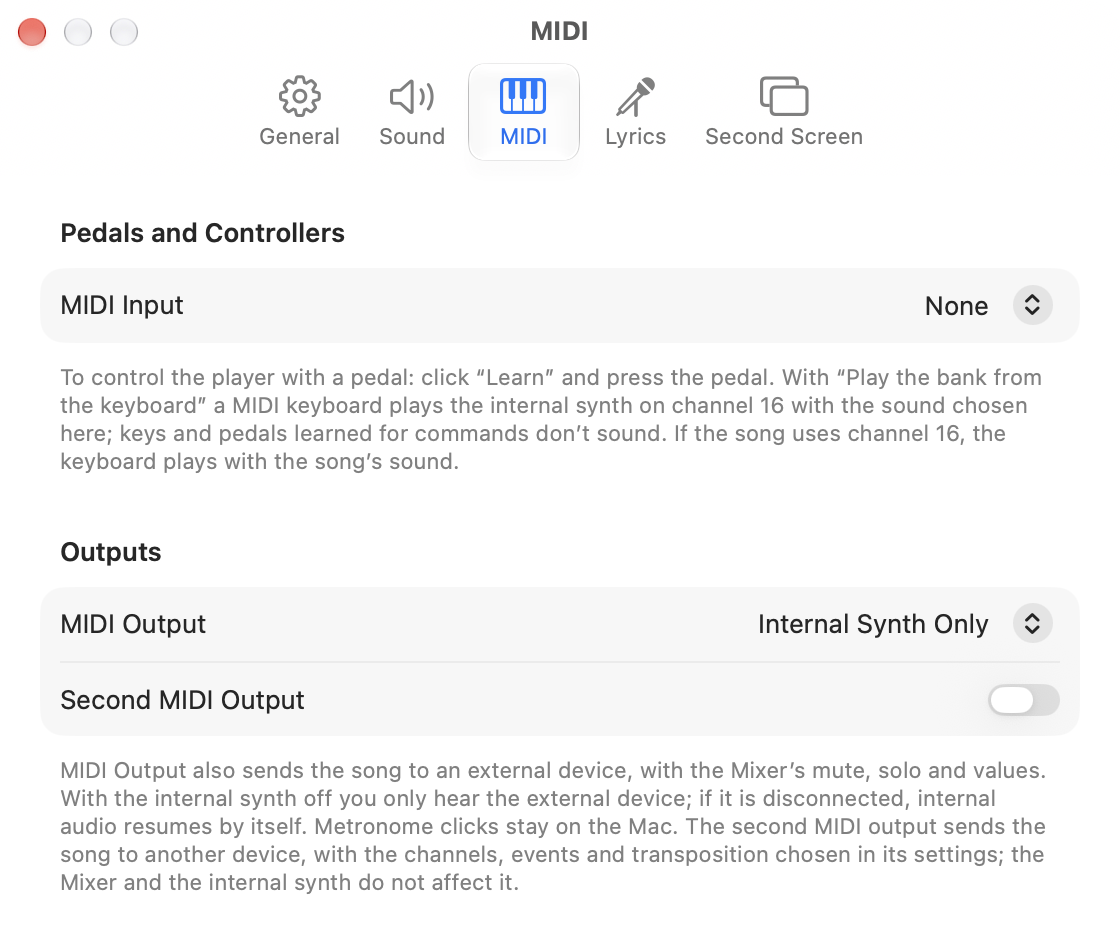
- Pedals and ControllersMIDI Input: the device that controls the player. Once a device is chosen, Play/Stop, next song and previous song appear: click Learn and press the pedal; the small cross forgets it. Below you see the last message received. With Play the bank from the keyboard a MIDI keyboard plays the built-in synthesizer, with the sound chosen in Keyboard sound (or everything on channel 16); keys and pedals learned for commands don't play.
- OutputsMIDI Output: also sends the song to an expander or keyboard, with the Mixer's mute, solo and values. With a device chosen, Internal Synth appears: off, you hear only the external device (and if it's disconnected the internal audio comes back by itself). Second MIDI Output: see below.
Second MIDI Output
Turn on Second MIDI Output and choose in Output 2 a device other than the MIDI Output one. With Output 2 Settings… you choose:
- Channels: all 16 by default; click a channel to leave it out or bring it back, or use All / None.
- Event types: Notes, Control Change, Program Change, Pitch Bend, Aftertouch, SysEx.
- Transposition: from −24 to +24 semitones, added to KEY (drums stay as they are).
The second output is independent of the Mixer: mute, solo and knobs don't affect it. It's the only output that also receives the file's SysEx.
Lyrics
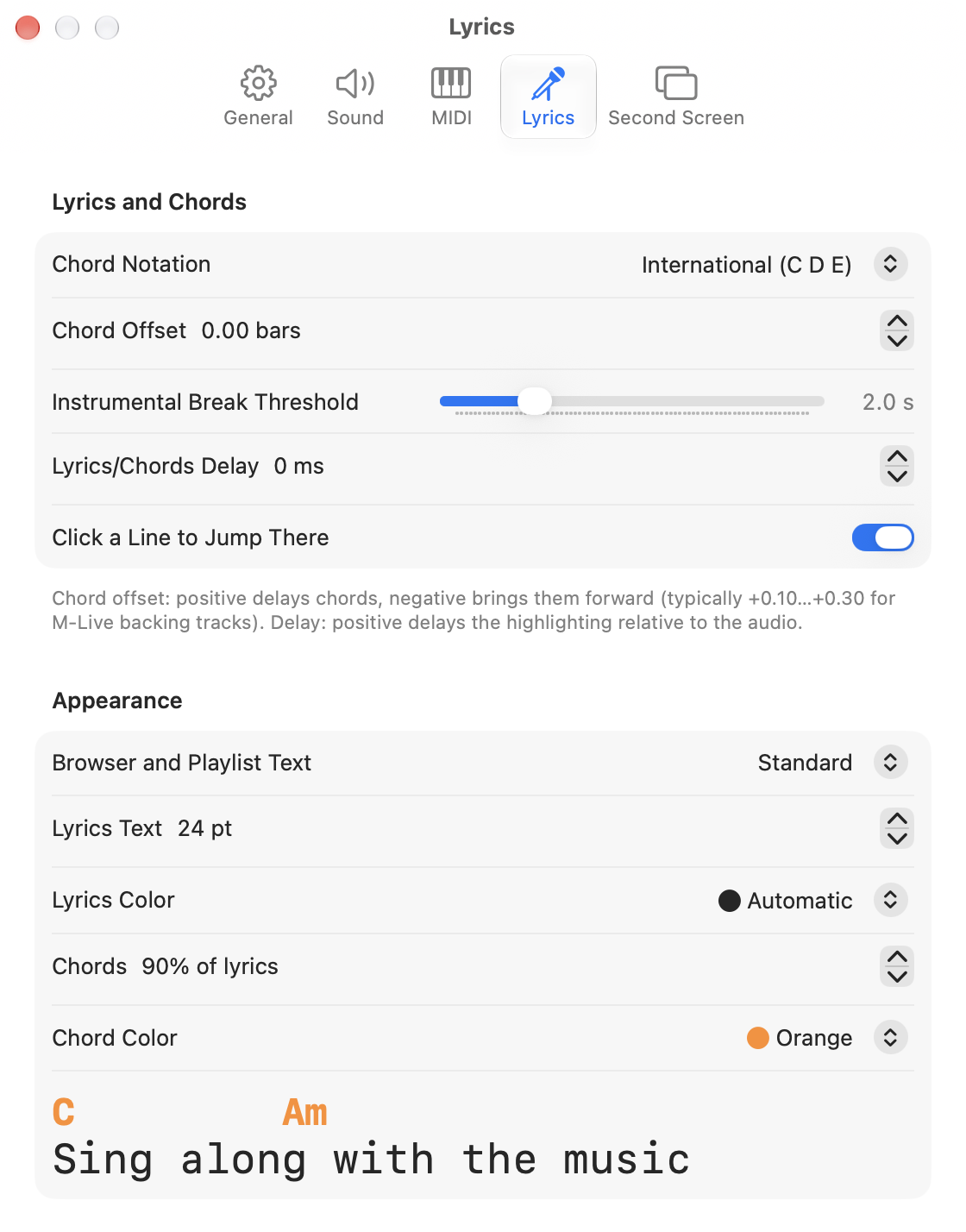
- Lyrics and Chords Chord Notation: international (C D E) or Italian (DO RE MI). Chord Offset: from −2 to +2 bars; positive delays them (typically +0.10…+0.30 for M-Live backing tracks, which play them early). Instrumental Break Threshold: the gap beyond which the chords between two lines form an instrumental line. Lyrics/Chords Delay: moves the highlighting earlier or later than the audio, in 10 ms steps. Click a Line to Jump There.
- AppearanceText size in Browser and Playlists; size and colour of lyrics and chords in Lyrics, with a preview.
Second Screen
Mode, screen and look of the karaoke: see Second screen.
Trial version and full version
In the trial version every song stops at 60%: the app goes back to the start of the song and offers the full version. The progress bar and the lines in Lyrics don't go past 60% either. The two demo songs play in full. Everything else in the app works without limits.
At the top of the General tab, the Trial Version section has the Buy, Restore Purchases (for example on a new Mac, with the same Apple Account) and Redeem Code (macOS 15 and later) buttons. After the purchase the section disappears. The purchase applies to the Mac app; the iPad and iPhone app is bought separately.