Second screen
Connect a TV, monitor or projector to the Mac: a full-screen window shows the karaoke for the singer or the audience, while you keep using the app on the Mac's screen.

Opening the second screen
- Connect the external screen (HDMI, USB-C, AirPlay) and keep it as an extended display, not mirrored.
- Choose Window › Karaoke Second Screen (⌘ K), or Open in Settings › Second Screen.
- The window opens full screen on the external display. ⌘ K again (Close Karaoke Second Screen) closes it.
With Screen › Automatic the app uses the first screen other than the main window's; you can also pick a specific screen. With a single screen the window opens as a normal window that you can move and resize.
Two modes
- Karaoke (the default): lyrics only, no chords, big and centred. 2 lines are visible (or 3, or 4): once a line is sung the next one takes its place, so the singer reads ahead without the text scrolling. Before the singing and between songs the title and artist appear; during a long instrumental break, the ♪ symbol.
- Lyrics Copy: the Lyrics section as it is, with chords if CHORD is on, enlarged (100–300%) to be readable from a distance. Useful for musicians on stage.
Settings
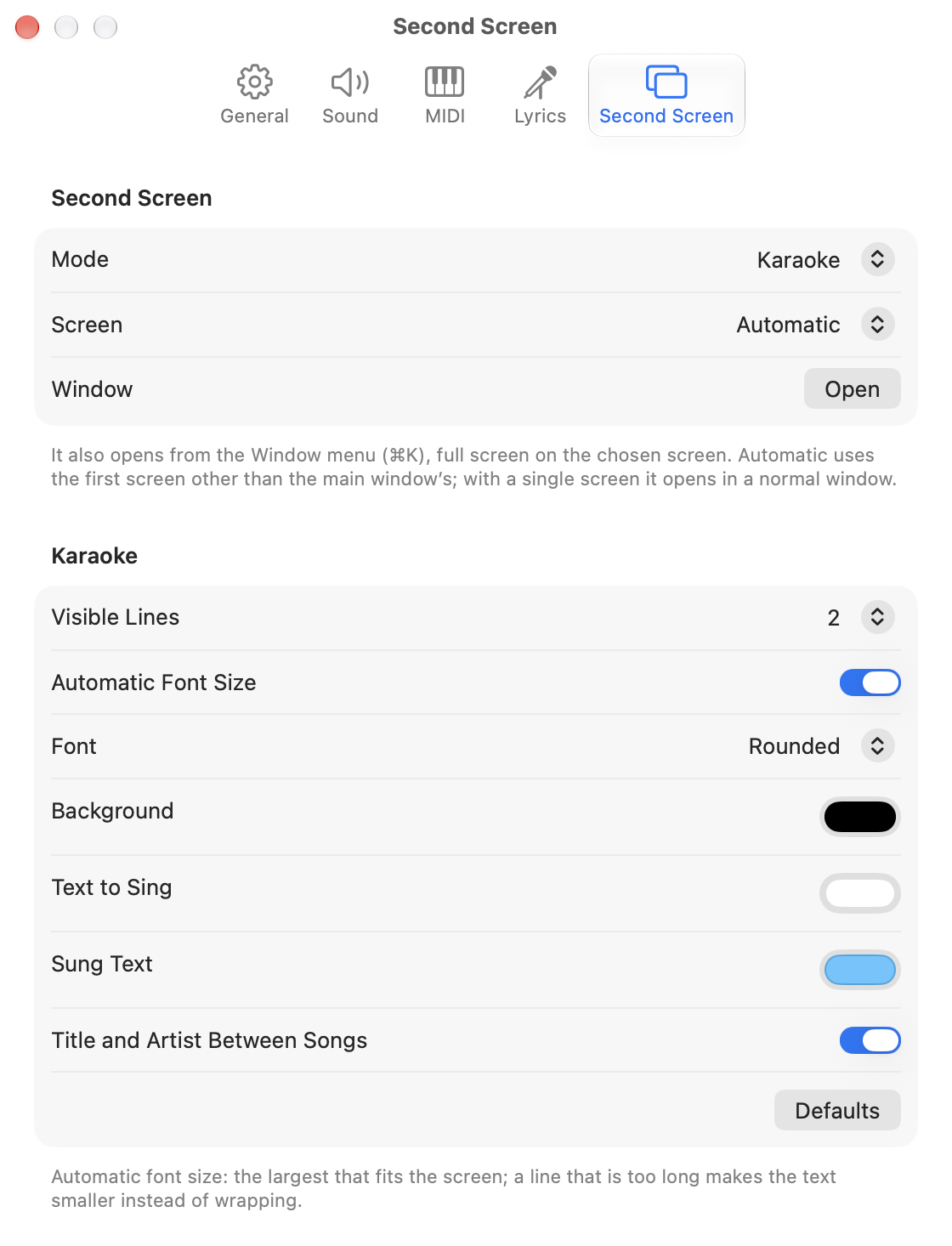
- Mode, screen and windowKaraoke or Lyrics Copy (for the copy, Zoom appears); the screen to use; Open / Close the window. If you change screen while the window is open, it reopens on the new one.
- Lines and fontVisible lines (2, 3 or 4). Automatic Font Size uses the largest that fits the screen; off, you choose the size. Either way, a line that is too long makes the text smaller instead of wrapping. Font: system, rounded or serif.
- ColoursBackground, text to sing and sung text.
- Title and defaultsShow title and artist between songs or not. Defaults goes back to a black background, white text and light blue sung text.