Browser
Your song library: all the .mid, .midi and .kar files in the chosen folder, in a table with title, artist, BPM, key, duration and file name, and icons that tell you at a glance whether a song has karaoke lyrics and chords.
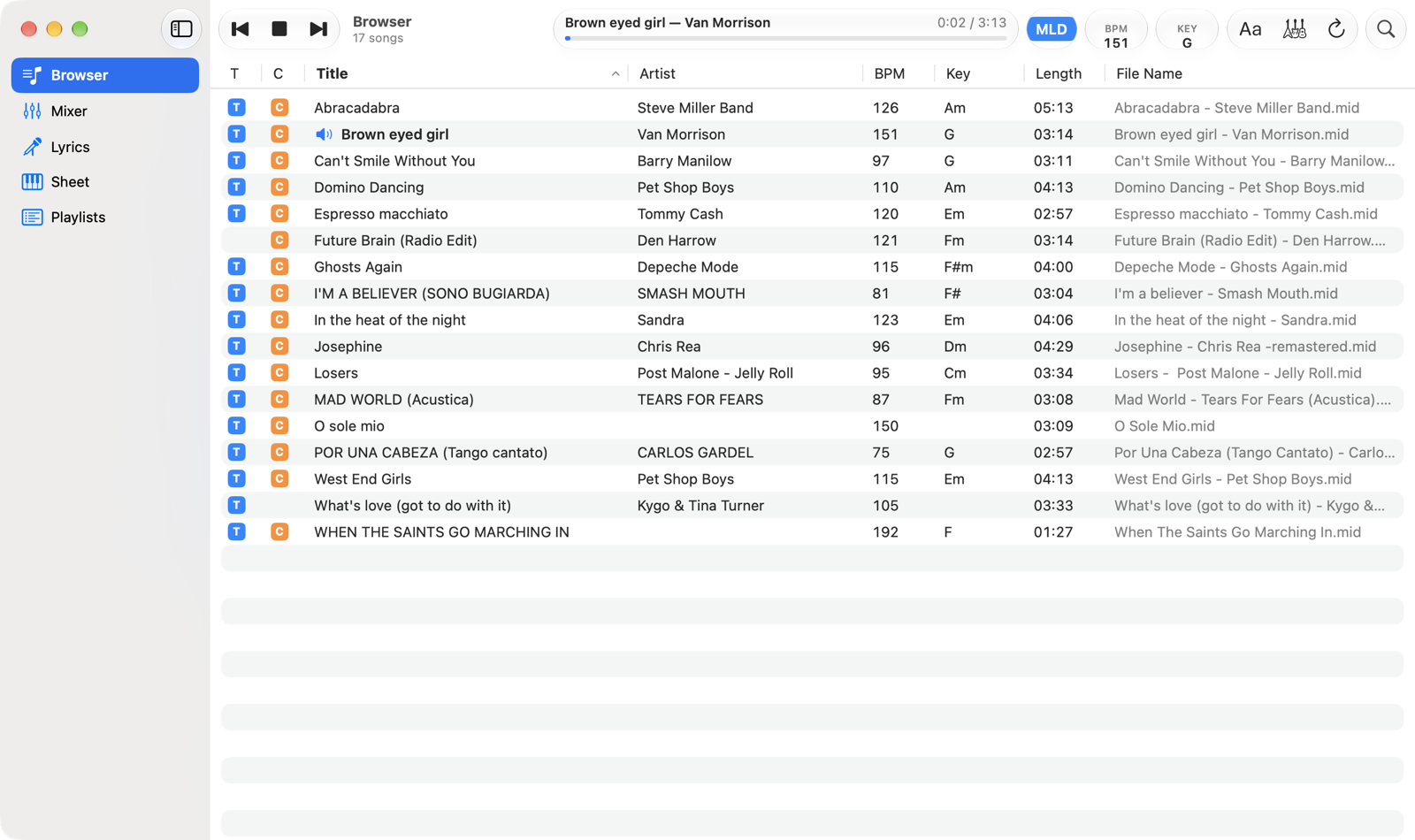
- SectionsBrowser, Mixer, Lyrics, Sheet and Playlists. Options are in the Settings window. The button next to the window controls hides or shows the column.
- TransportPrevious song, Play/Stop and next song. They're in the toolbar and stay the same in every section: see Transport and menus.
- Number of songsHow many songs are in the list right now, taking search and filters into account. While the folder is being read, scanning… appears.
- Title and progressThe loaded song, the elapsed time and the duration. Click or drag on the bar to move through the song.
- MLD, BPM and KEYMelody, tempo and key of the loaded song.
- Filters and refreshAa shows only songs with lyrics, the guitars only songs with chords; you can use both together. The circular arrow reads the folder again.
- SearchSearches title, artist and file name, ignoring case and accents.
- SortingClick a column name to sort the list, click again to reverse the order. Songs with the same value stay in title order. Drag the edge of a header to widen a column.
- T and C iconsT: the song contains karaoke lyrics. C: it contains chords. They work for every supported format (M-Live, GM karaoke and
.kar, Yamaha XF, Solton), so they tell you right away what you'll see in Lyrics and Sheet. - Loaded songThe speaker and the bold title mark the song that's in the player.
Loading a song
Double-click a row, or select it and press Return: the song loads and the toolbar shows its title and duration. If a song was playing, the new one starts right away; otherwise press the space bar. The section doesn't change, so you can pick the next song while the current one plays.
From the Browser a song always starts with the file's values: original key, original BPM and the file's mixer. Changes you make to KEY, BPM and Mixer last while the song stays loaded. To keep them, add the song to a playlist: there every entry remembers its settings.
Song menu
Right-click (or Control-click) a song:
- Load puts it in the player.
- Add to Playlist adds it to an existing playlist or a new one (New Playlist…).
- Add to Playlist with Current Settings appears for the loaded song if you've changed KEY, BPM or Mixer: the entry starts with your changes.
- Show File Info lists the metadata read from the file and where the displayed key comes from.
Where to put your songs
- The app's folder. In Settings › General, Show in Finder opens the app's folder, Music › AR MIDI Player: copy your files there. When you come back to the app the list updates by itself.
- A folder of your own. Choose Folder… uses any folder: in Music, on an external drive, on a USB stick or on a network volume. The app remembers it between launches. If it can't be reached (drive disconnected, no network) the app says so, and opens it again when you return to the app or click Refresh.
- A single file. File › Open a File… (⌘ O) loads one file just to play it, without adding it to the library or to playlists.
If a file has no title and artist in its metadata, the app takes them from the file name following the convention chosen in Settings (for example Artist - Title.mid). The first scan of a folder with thousands of files takes a few minutes; after that it opens instantly, because only new or changed files are read again.