Buzzers
Three ways to connect the teams' buzzers, even together. The winner is always the first press that reaches the host.
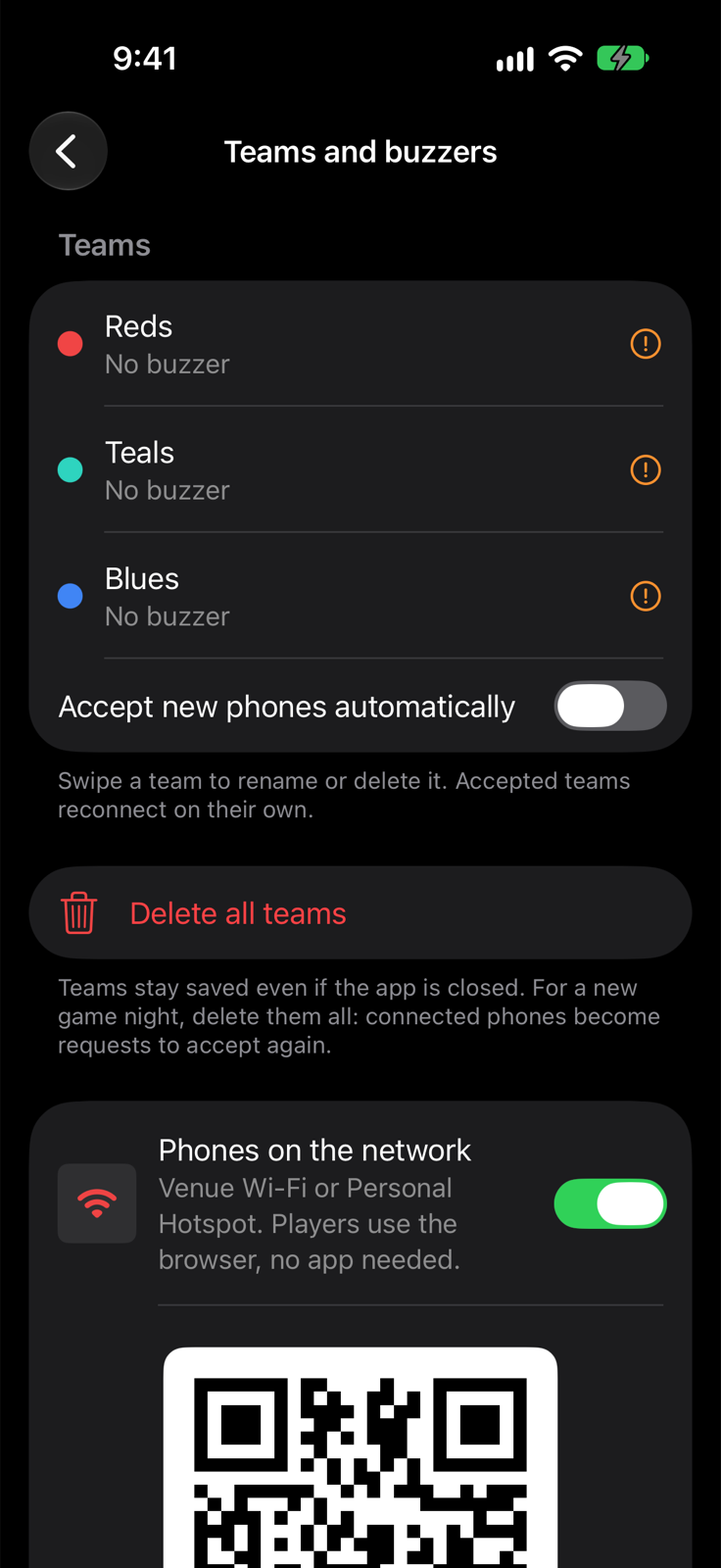
Phones on the network (recommended)
- In Teams and buzzers turn on Phones on the network: a QR code appears.
- Players scan it with the camera: a page opens in the browser, nothing to install, on iPhone and Android.
- They type the team name and tap Join. The red button is the buzzer.
- Everyone on the same Wi-Fi network, or connected to the host iPhone's Personal Hotspot (turn it on in Settings; how many phones can join depends on model and carrier).
- The host iPhone or iPad must stay on with Tunestrike open. If it goes to sleep, the server reopens when you come back and the pages reconnect on their own.
- On Android, turn off automatic switching to mobile data for networks “without internet”.
- Every new phone shows up under Requests: the host taps Accept (it becomes a team with its name) or Reject. This way nobody joins just by being on the same network. Among friends you can turn on Accept new phones automatically.
- If an accepted phone disconnects and comes back, it rejoins its own team without asking again.
Bluetooth
No network needed. Turn on Bluetooth in Teams and buzzers:
- iPhone and iPad: the player installs Tunestrike (free), taps Playing at a Party? at the bottom of the home screen, types the team name, taps Join and picks the Party (if only one is nearby it is picked automatically): the red button becomes their buzzer. There is no need (and no way) to pair it in Settings › Bluetooth, and no need to unlock Party: only the host pays.
- Android: scan with Chrome the QR code shown under Bluetooth (it opens armusic.dev/tunestrike/buzzer), tap Connect and pick the Party with the name and code shown on the host. Internet is needed only the first time: after that the page opens offline too.
Each host has a Party name (change it under Bluetooth) and a 4-character code: with several Parties in the same room, each buzzer connects only to the one it picked.
iOS handles about 8–10 simultaneous Bluetooth connections: for bigger groups use the network.
MIDI pads
- Connect a USB (class compliant) or Bluetooth MIDI controller and turn on MIDI pads.
- Tap Add team with a pad and press that team's pad (or key).
- Learn changes it. Every hit is timed to the millisecond.