Playlists
Your set lists. Each entry is a song from the library with its own settings: key, tempo and mixer are saved automatically and come back every time you load it.
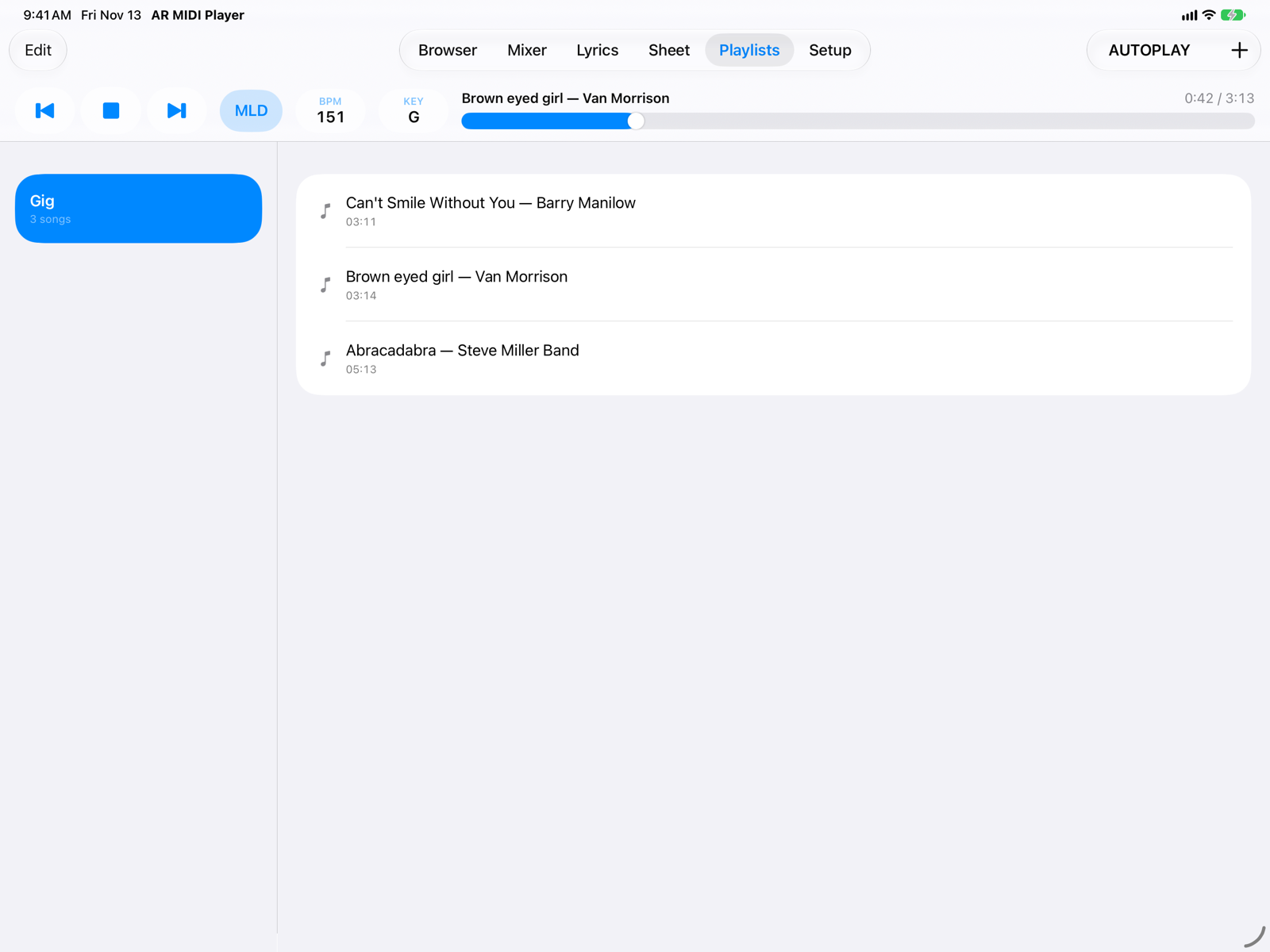
- EditTo reorder entries by dragging them and to delete them.
- AUTOPLAYOff (the default), playback stops at the end of a song. On, it moves to the next entry and starts it; after the last one it stops.
- New playlistCreates an empty playlist and asks for its name.
- PlaylistTap a playlist to see its entries. Touch and hold to rename or delete it: the MIDI files stay in the library.
- EntriesTap an entry to load it, without starting it. Below the title you see the saved settings (for example
KEY +2 · 100 BPM · 1 channel), the length and, in purple, the note.
Adding songs
From the Browser: touch and hold a song › Add to Playlist › an existing playlist or New Playlist…. The same file can be in several playlists, or twice in the same one, with different settings (for example "no piano" and "no piano and guitar").
Settings and notes
- Automatic saving. With a song loaded from a playlist, every change to KEY, BPM and Mixer is saved in the entry right away: there is no Save button.
- Restore Original (touch and hold the entry) goes back to the file's values.
- Note: swipe the entry to the right, or touch and hold it › Edit Note. Use it for the keyboard registration or a reminder for the band. The note also appears at the top of the Lyrics tab.
- Previous and next song in the bar move through the playlist you loaded the song from.
- If a file is moved or renamed, the entry keeps its settings but shows as not available.
On iPhone
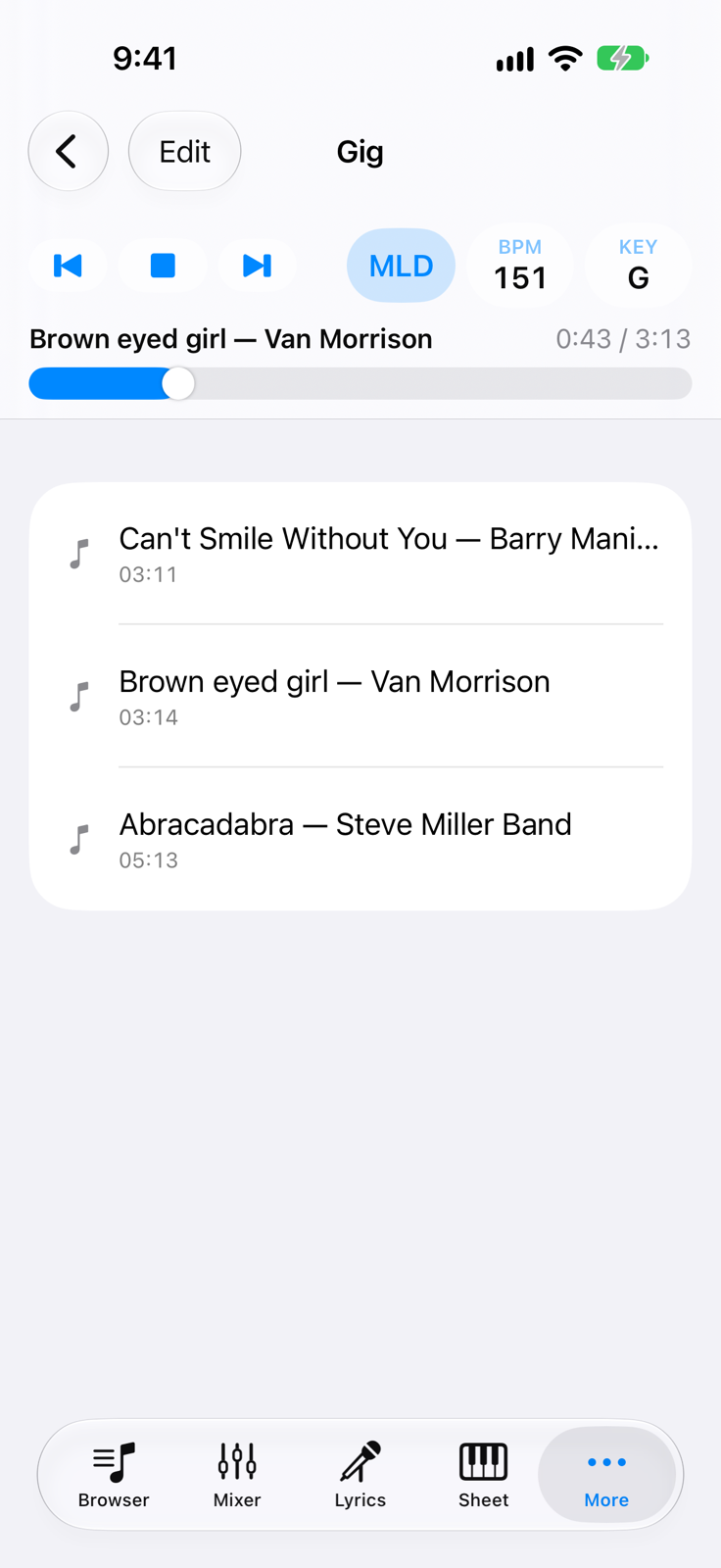
- Edit
- Playlist entriesOpens when you tap the playlist in the list.
- MoreOn iPhone, Playlists and Setup are here.