Second screen
Connect the iPad to a TV, monitor or projector: the external screen shows the karaoke for the singer or the audience, while you keep using the app on the iPad as usual.
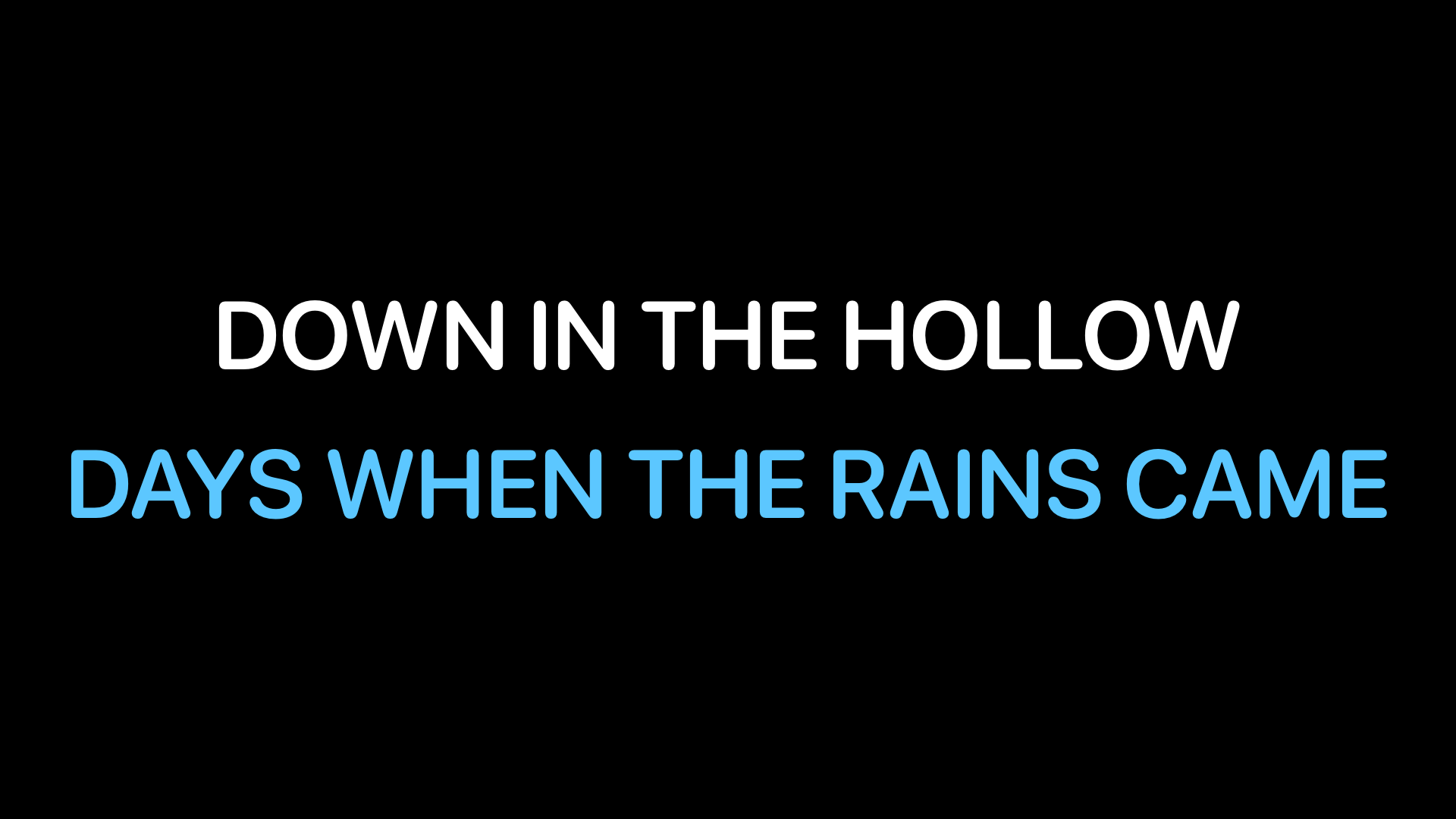
Connecting the screen
- With a cable: a USB-C to HDMI adapter. Stage Manager must be off (Settings › Multitasking & Gestures), so the iPad uses the external screen in mirroring mode.
- With AirPlay: Control Centre › Screen Mirroring › the TV or Apple TV.
As soon as the screen is connected, it shows the karaoke instead of a copy of the iPad. In Setup › Second Screen the External Screen row says Connected.
Two modes
- Karaoke (the default): text only, no chords, large and centred. You see 2 lines (or 3, or 4): when a line has been sung, the next one takes its place, so the singer reads ahead without the text scrolling. Before the singing and between songs the title and artist appear; during a long instrumental break, the ♪ symbol.
- Lyrics Copy: the Lyrics tab as it is, with chords if CHORD is on, enlarged to be readable from a distance. Useful for musicians on stage.
Settings
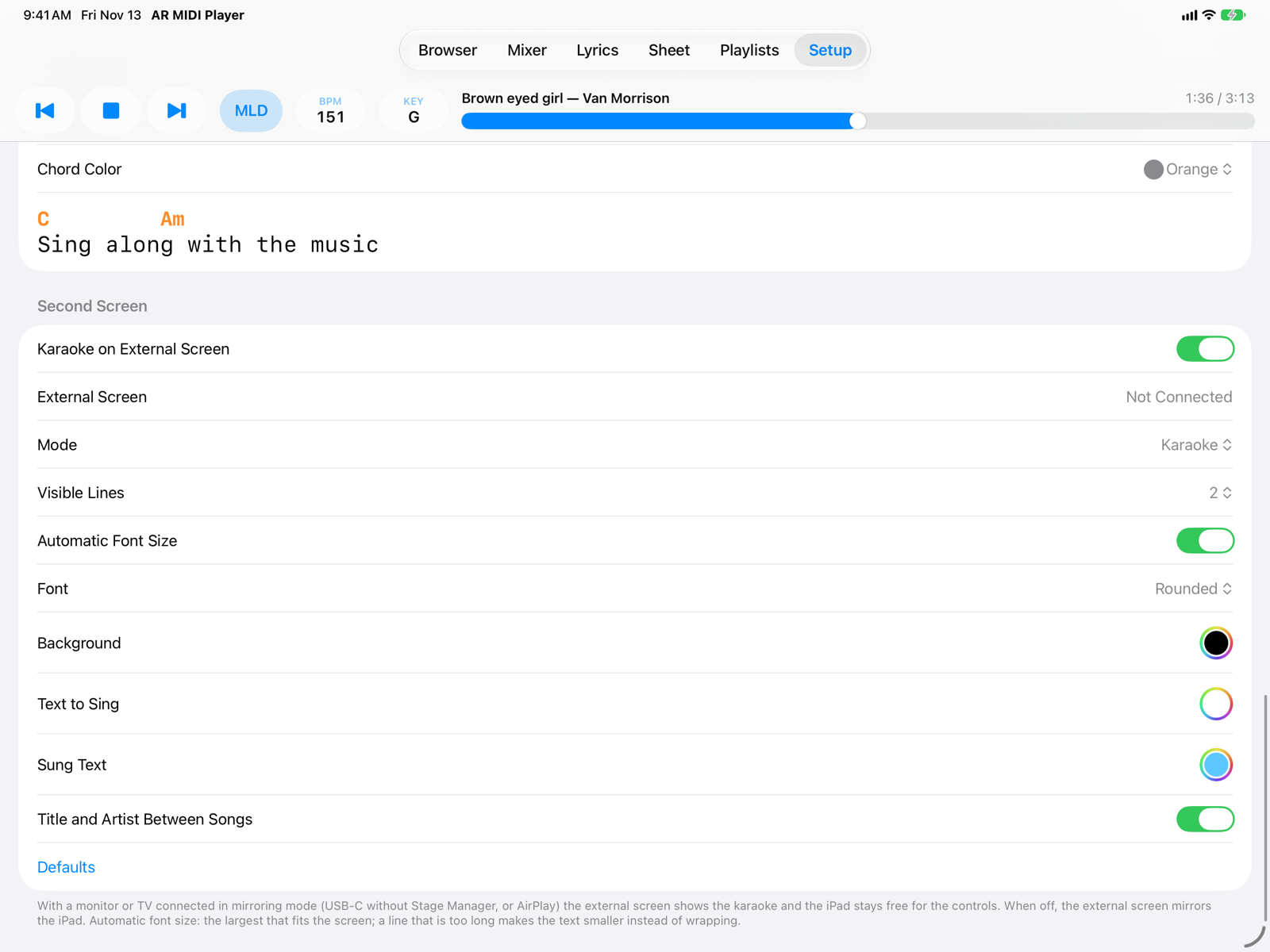
- Mode and linesKaraoke or Lyrics Copy (Lyrics Copy also has a zoom setting, 100–300%). In Karaoke mode, the visible lines: 2, 3 or 4.
- Font and coloursAutomatic Font Size uses the largest size that fits the screen; off, you choose the size. Either way, a line that is too long makes the text smaller instead of wrapping. Font (system, rounded, serif) and the colours of background, text to sing and sung text.
- Title and defaultsWhether to show title and artist between songs. Defaults goes back to a black background, white text and blue sung text.
At the top of the section, turning off Karaoke on External Screen makes the external screen mirror the iPad again, even while it is connected.
Stage Manager's extended display is not supported: if you use it, set the external screen to mirroring in the iPad's settings.